To configure GoToCheck.pro and automate submissions to SES.Hospedajes, you first need to get your web service username and password. These are different from your portal login — they are specific API credentials for automated submissions.
You need a digital certificate (from FNMT or similar) or a Cl@ve account to access the SES.Hospedajes portal. Without one of these, you cannot log in and the process cannot be completed.
Step-by-step guide (with screenshots)
Access the SES.Hospedajes portal
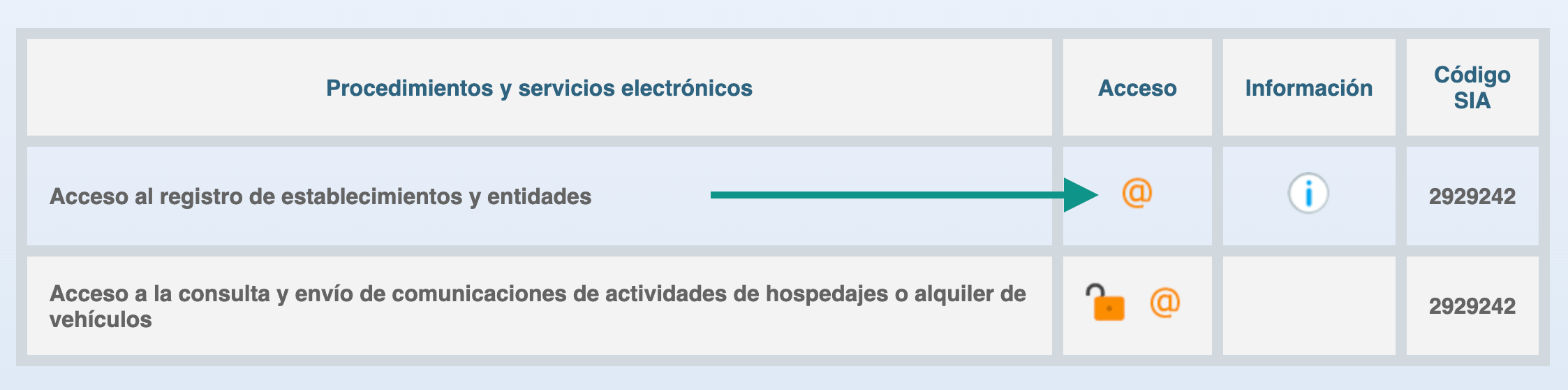
Go to the official SES.Hospedajes portal at: hospedajes.ses.mir.es. Click on "Access the establishment and entities registry" (Acceso al registro de establecimientos y entidades).
Access the establishment registry
On the home page, click the button "Acceso al registro de establecimientos y entidades". This takes you to the main management area.
Identify yourself
The system will ask you to identify yourself. Use your digital certificate (in the browser or via Autofirma) or your Cl@ve credentials. Make sure you log in with the NIF associated with the establishment registration.
Access "My registered data"
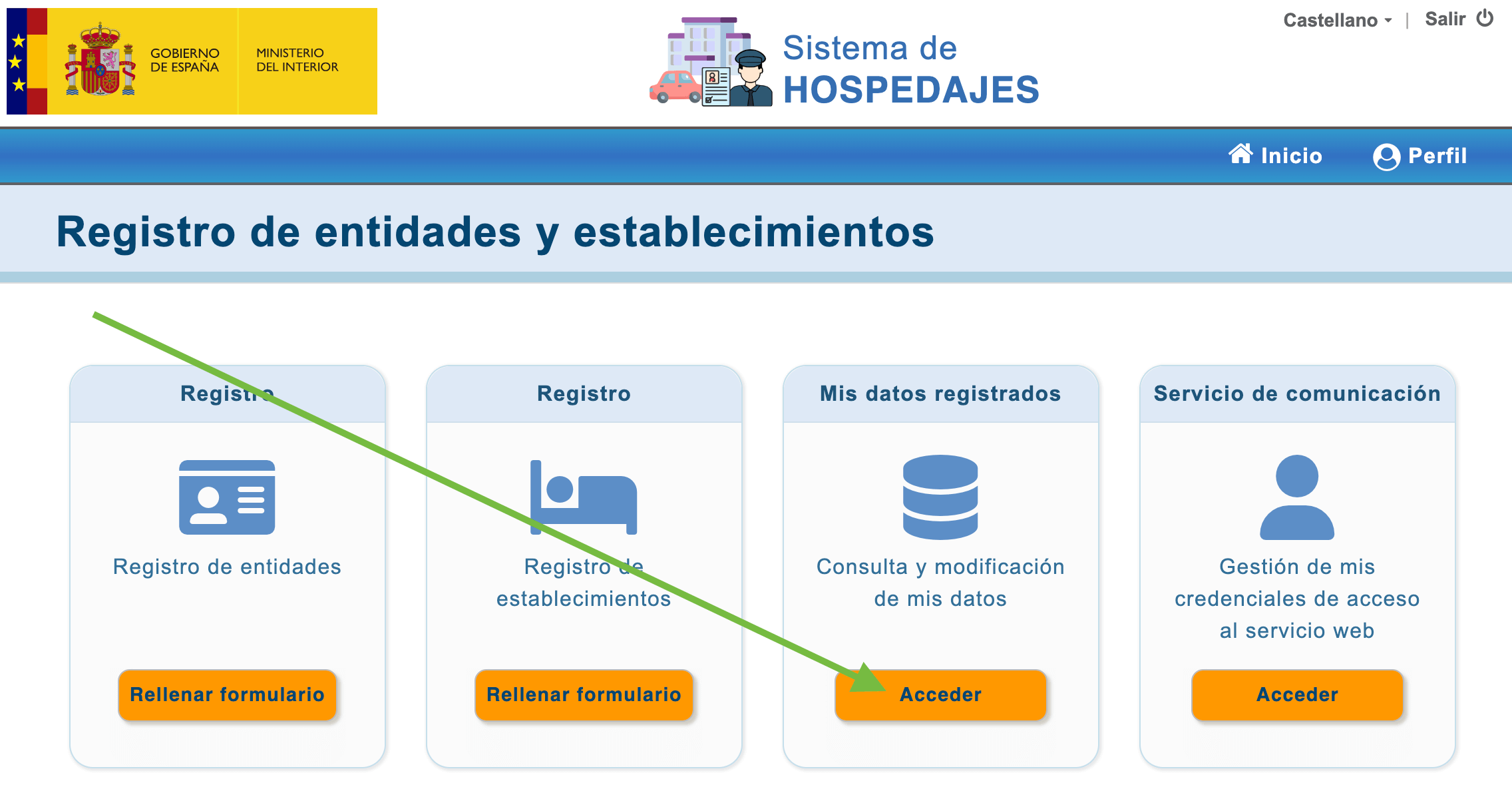
Once inside, you will see your establishment's registration card. Find the "Mis datos registrados" (My registered data) section and click "Acceder".
Activate web service submission
Look for the option "Envío de comunicaciones por servicio web" (Submit communications via web service). Tick the checkbox and click "Guardar" (Save).
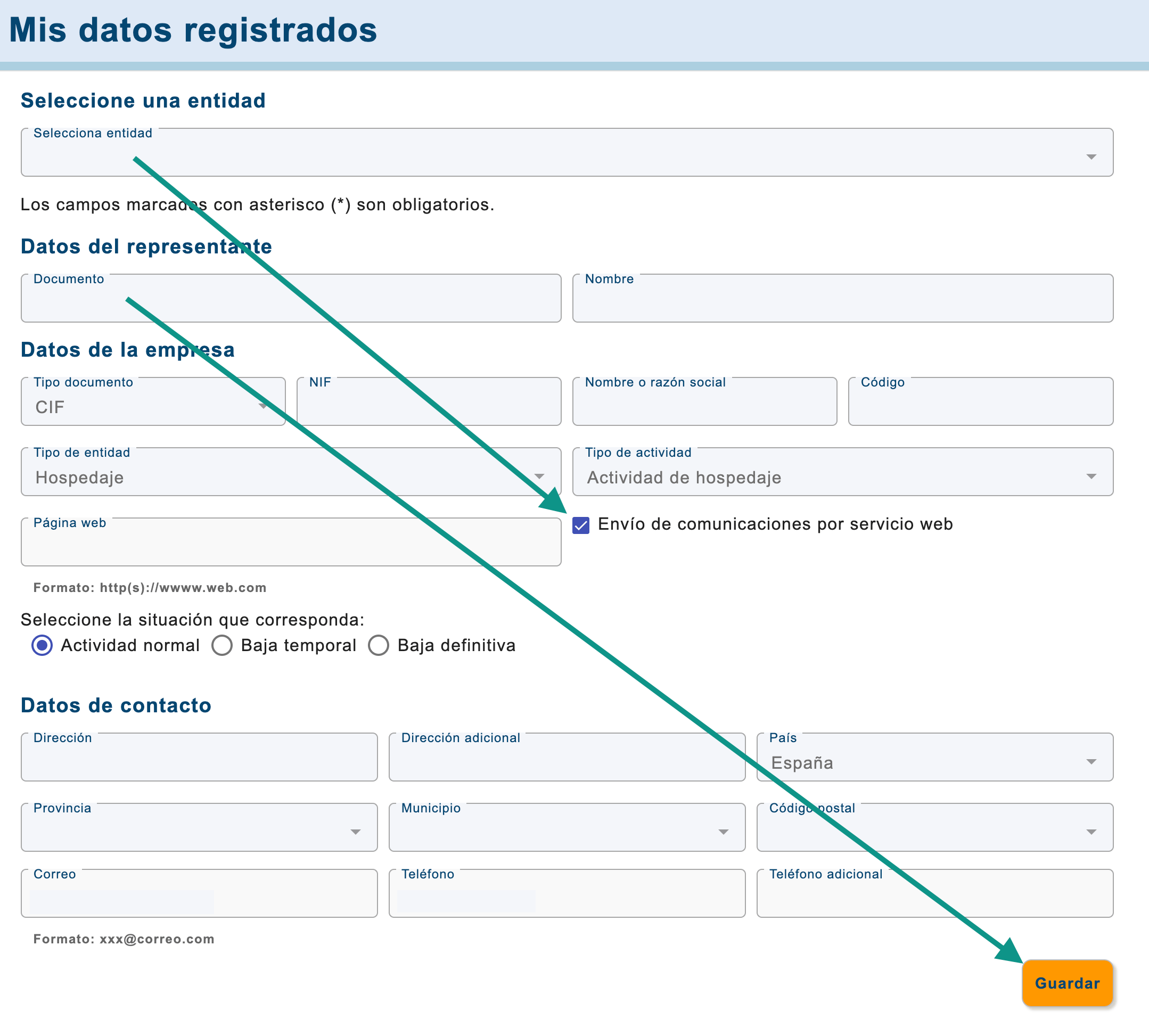
Make sure you tick the checkbox and save. Only saving after ticking triggers the credentials email. If the checkbox was already ticked, uncheck it, save, re-tick and save again.
Receive credentials by email
After saving, SES.Hospedajes will automatically send you an email from no-reply_hospedajes@ses.mir.es with your web service username and initial password.
no-reply_hospedajes@ses.mir.es.
You now have your web service username and password. The next step is to enter them in GoToCheck.
How to configure them in GoToCheck
- Log in to your GoToCheck.pro account
- Go to Settings (⚙️ in the side menu)
- Select Your property
- Find the SES.Hospedajes Configuration section
- Enter your web service username received by email
- Enter the password from the same email
- Click Save
GoToCheck.pro will automatically send all guest data to SES.Hospedajes every time a guest completes their online check-in — without any manual intervention from you.
Troubleshooting: credentials not received?
- Check your spam / junk mail folder
- Wait at least 30 minutes before retrying
- Make sure you clicked Save after checking the box
- Try unchecking the box, save, re-check, save again
- If still nothing: contact SES.Hospedajes support via the portal contact form
Web portal vs web service: what's the difference?
| Feature | 🖥️ Web portal access | ⚙️ Web service (API) |
|---|---|---|
| Login method | Certificate / Cl@ve | Username + password |
| Submission mode | Manual (one by one) | Automatic (per booking) |
| Works with GoToCheck? | ❌ No | ✅ YES — this is what you need |
Not using GoToCheck.pro yet?
Connect your credentials and automate all submissions. Try free for 30 days.
Try FREE for 30 days →Frequently asked questions
Are the credentials the same for all my properties?
It depends. If all your properties share the same NIF and are registered under one establishment, the credentials may be shared. Separate establishment registrations may require separate credentials.
How long does it take to receive credentials by email?
Usually a few minutes. If you don't receive them within 30 minutes, check your spam folder. The sender is no-reply_hospedajes@ses.mir.es.
Can I request web service credentials even if I plan to send manually for now?
Yes. Having web service credentials does not commit you to using them automatically. You can request them now and configure them in GoToCheck whenever you are ready.
What if the checkbox was already ticked?
If it was already ticked, uncheck it, click Save, then re-tick it and Save again. This triggers the system to re-send the credentials email.
Do the SES.Hospedajes credentials expire?
The web service password expires periodically (approximately every 3–6 months). The username does not change. When the password expires, GoToCheck will show a connection error — update the password from the portal and re-enter it in your GoToCheck settings.