Before you connect Booking.com, Airbnb or Vrbo, the property has to exist in the channel manager and have a price. It takes three steps, done once per property, and when you finish you can carry on with the guide for whichever site you want to connect.
Before you start
- A GoToCheck account with the channel manager added.
- The maximum number of guests for the property. It is fixed when you set it up and cannot be changed afterwards without rebuilding the rate plan and reconnecting the channels, so check it carefully.
- The price per night you want to go on sale with. You can fine-tune it later (seasons, weekends, the markup for each site), but it is best to have one from the start.
Step 1. Open Connection with the OTAs
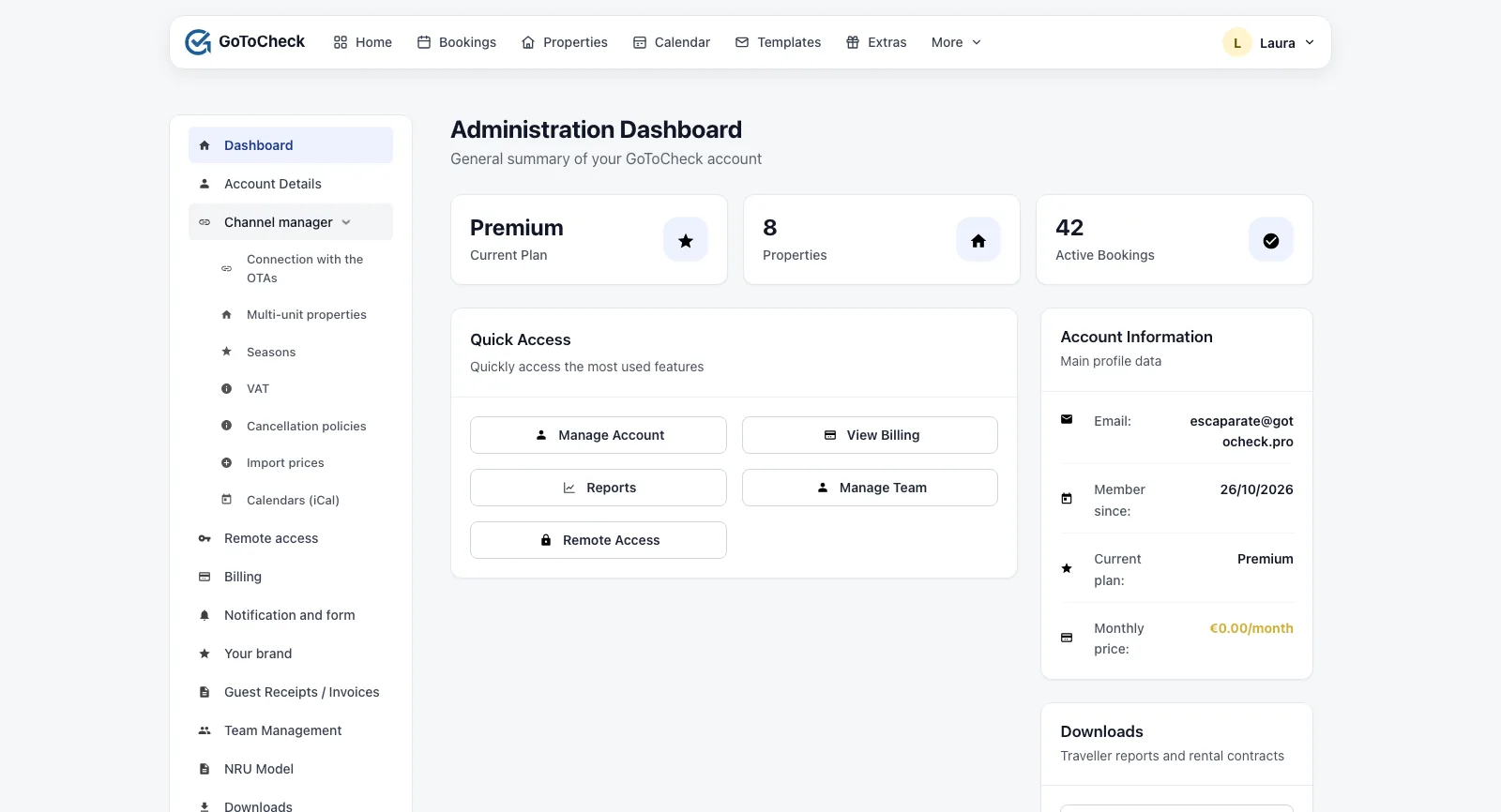
Click your name in the top right corner and open the Dashboard. In the menu on the left, open Channel manager › Connection with the OTAs. This is the screen the whole channel manager is managed from: which properties are set up, on which sites, and whether they are really publishing.
Step 2. Set up the property
There are two routes, depending on whether the property already exists in your dashboard or not. Do not create it twice: if you already have it in Properties, take the first one.
If the property already exists in your dashboard (the usual case)
- Go to Properties and open the property.
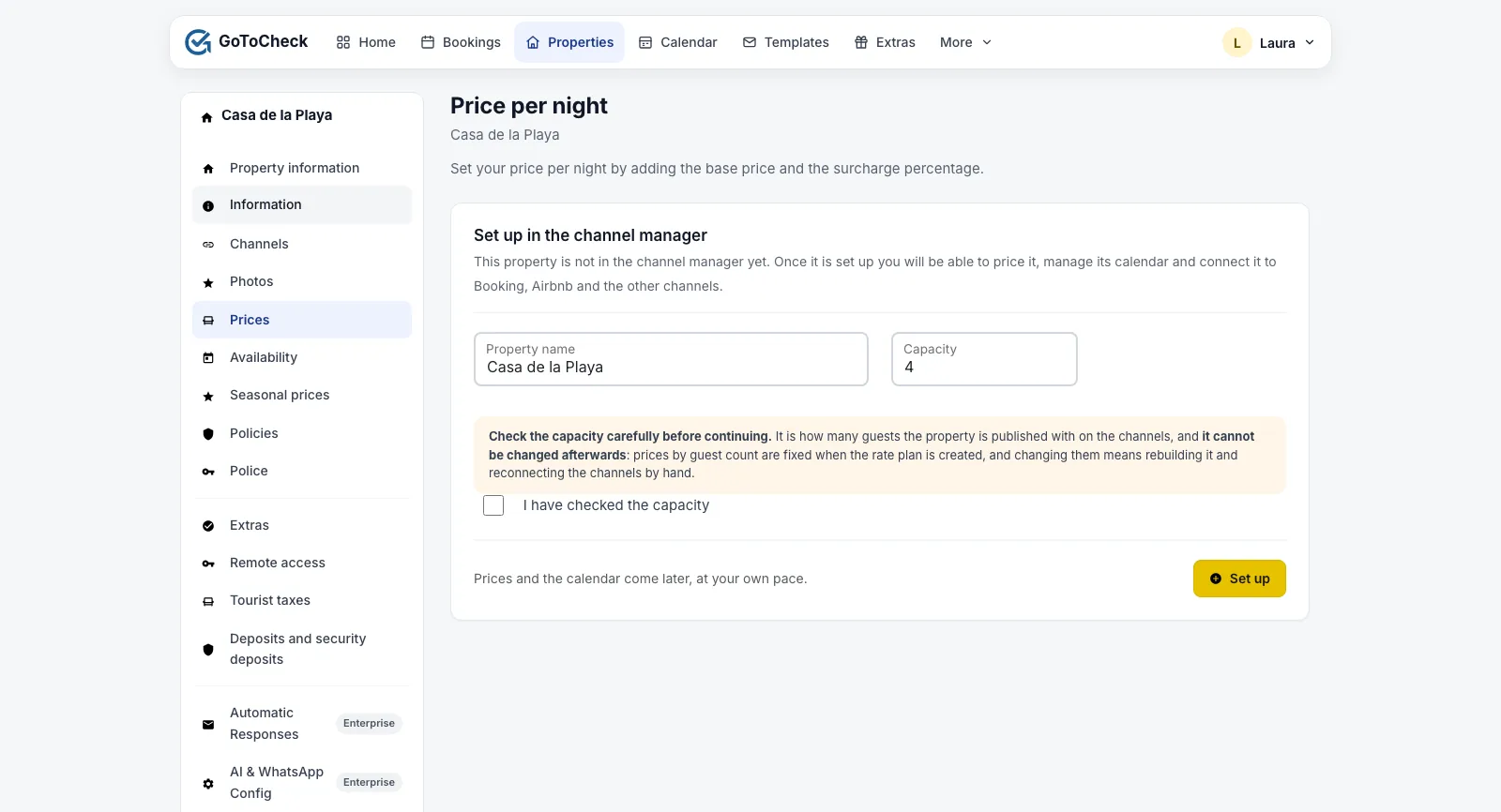
- In the menu on the left, go to Prices. You will see the Set up in the channel manager card.
- Check the name and the capacity, tick I have checked the capacity and click Set up.
If the property is new
- In Connection with the OTAs, in the Add a property card, type the name and the capacity.
- Tick I have checked the capacity and click Create and set up.
- It is also created as a property in your dashboard, with the same name. The address, the photos, the locks and the policies can be filled in later, when you need them.
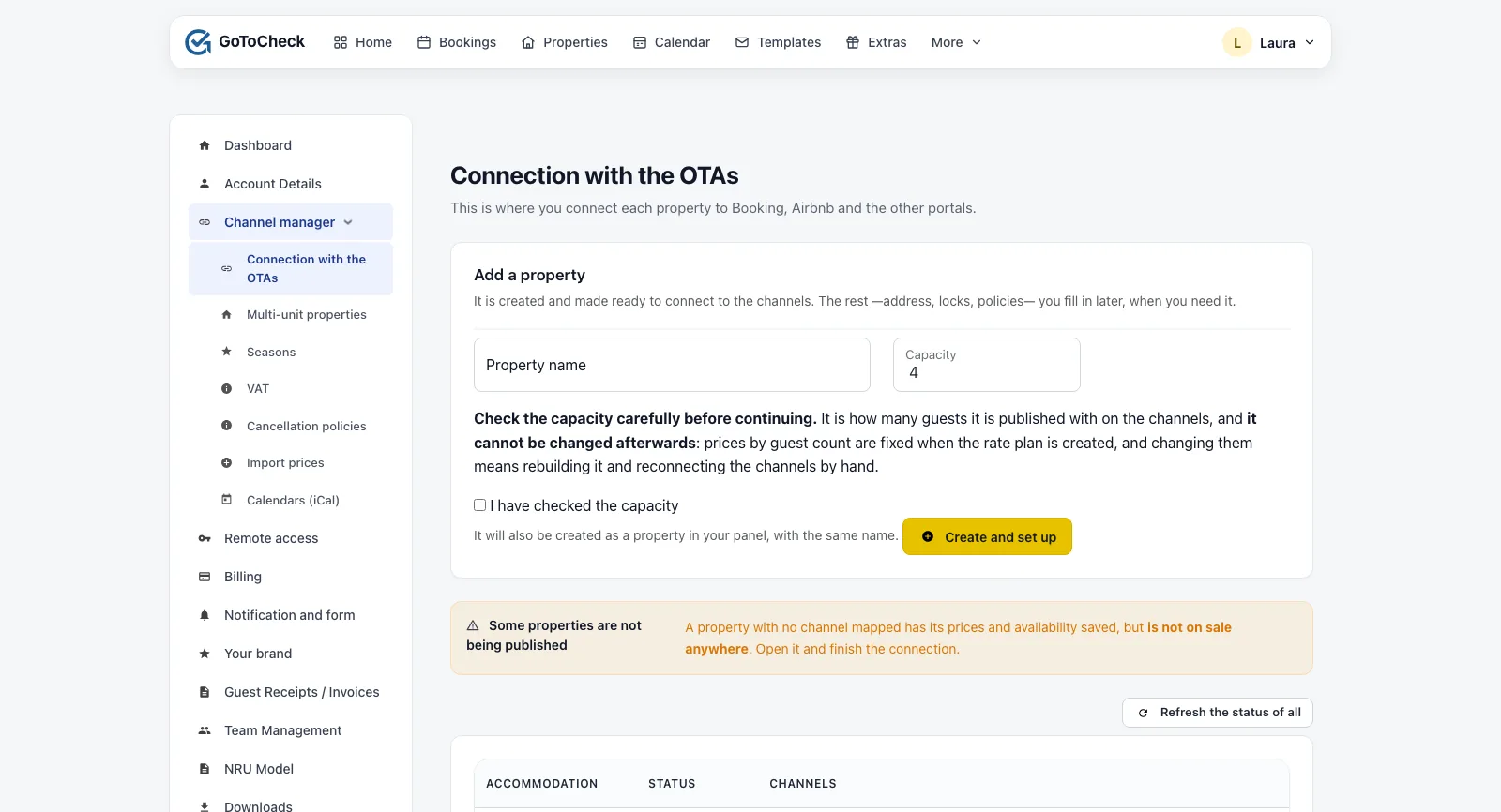
Check the capacity carefully. It is the number of guests the property is published with on the sites. Prices by number of guests are fixed when the rate plan is created, and changing the capacity later means rebuilding it and reconnecting the channels by hand.
Step 3. Give it a price
Do it before connecting any site, so the property never goes on sale without a price.
- In Properties, open the property and go to Prices.
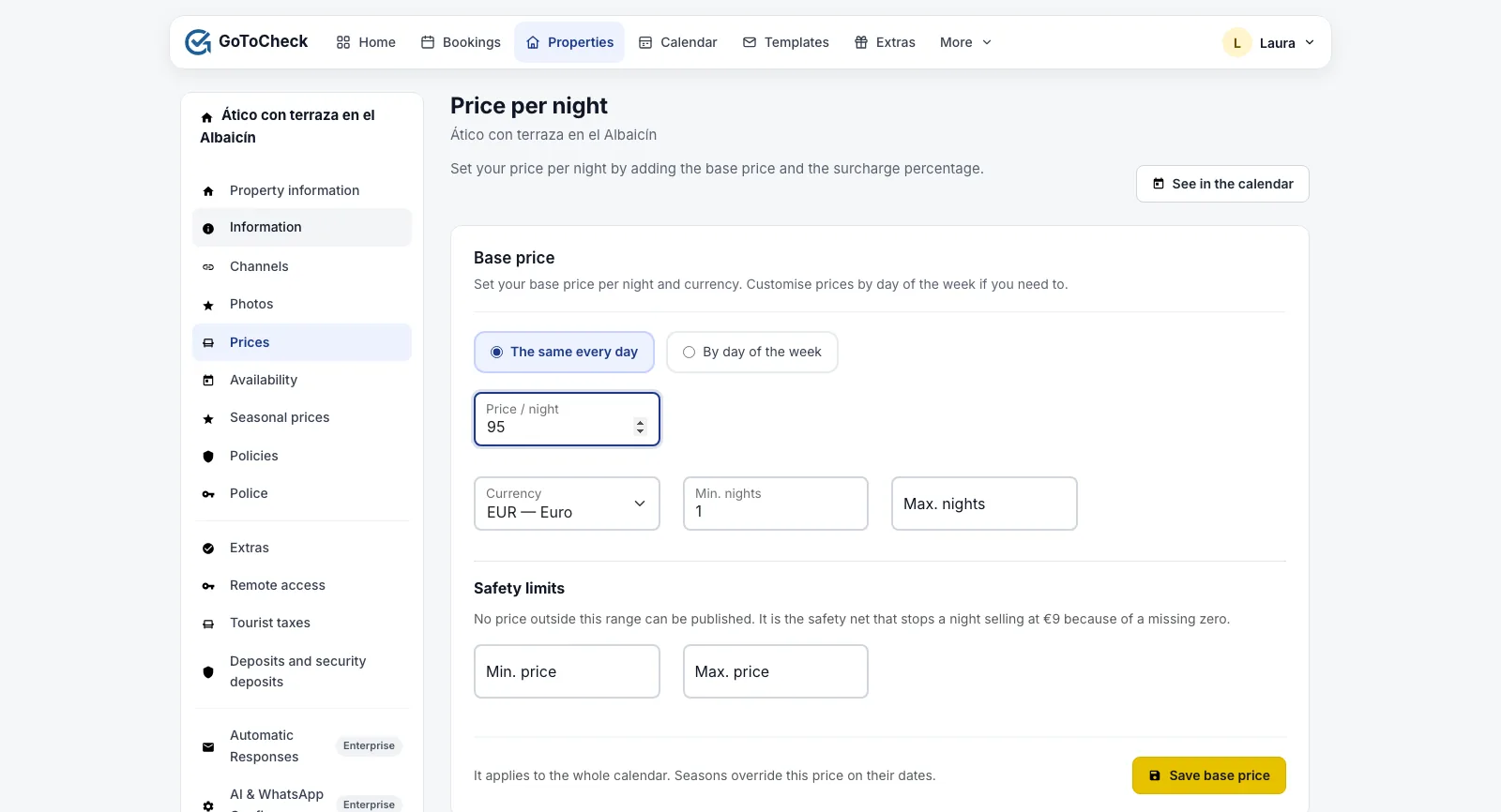
- In Base price, type the price per night and, if you like, the minimum nights. You can choose the same price every day or a different one by day of the week.
- In Safety limits, set a minimum and a maximum price: no price outside that range will ever be published. It is the safety net that stops you selling a night for €9 because of a missing zero.
- Click Save base price.
Further down on the same screen you will find the markup for each site (the percentage added to your price to cover the commission of Booking, Airbnb or Vrbo) and the seasons. You do not need to touch them now: the base price is enough to connect.
Next: connect your sites
With the property set up and priced, you can connect it. Each site has its own guide, with its screenshots and its pitfalls:
- How to connect Booking.com: authorise Channex in the extranet, the Hotel ID and the room and rate mapping.
- How to connect Airbnb: sign in to Airbnb, remove the imported iCal calendars and pair the listing.
- How to connect Vrbo: username, password and SMS code, pairing the listing, and what to do with the bookings you already had.
Until you connect and map the first site, Connection with the OTAs shows the notice “Some properties are not being published”. That is normal: prices and availability are saved, but they are not reaching anywhere yet.
Common mistakes
I have the property twice
You created a new one from “Add a property” when it already existed in Properties. Do not delete anything yourself: write to us and we will merge them, so you lose neither bookings nor registered guests.
I want to change the capacity
After setup it cannot be changed from the screen: the rate plan for each site is built from the prices by number of guests. If it really has to change, write to us: the rate plan is rebuilt and the channels are reconnected.
I see “Some properties are not being published”
It is the notice that the property has no channel mapped yet. It goes away when you finish the guide for the first site.
Frequently asked questions
Do I have to add the address and the photos before setting it up?
No. Setup only needs the name and the capacity. The address, the photos, the locks and the policies are filled in later, in the property's details; the sites keep using the photos they already have.
What happens to the bookings I already have in the dashboard?
They stay where they are. Setting up the property does not touch any booking; when you connect each site, its bookings are brought in (Booking and Airbnb deliver them; Vrbo does not, and those are entered by hand).
Can I set up several properties?
Yes, one at a time, repeating these three steps. Each property is connected to the sites separately; the Airbnb connection, though, covers your whole account, and from the second property onwards you only need to pair the listing.
What is the site markup?
A percentage added to your base price for each site, so that after its commission you are left with what you wanted. It is set in Prices, per site, and you can change it whenever you like.
Channel manager, online check-in and guest registration in one account
With GoToCheck, the bookings that come in from the sites go straight into online check-in and guest registration with the authorities, without copying data from one program to another.
Try it free for 30 daysStuck on a step? Write to us from your app.gotocheck.pro dashboard or on WhatsApp and we will go through it with you, step by step.