Vrbo is connected with your Vrbo username and password from the channels window, with a code sent by SMS that Vrbo sends to your phone when you test the connection, and then by pairing your listing with the property. Two things set it apart from Booking and Airbnb: until you complete the test connection and the pairing, Vrbo keeps the channel inactive; and the bookings you already had on Vrbo are not brought in on their own, you have to enter them in the dashboard.
Before you start
- A GoToCheck account with the channel manager added.
- The property set up in the channel manager and priced. If you have not done that yet, start with How to set up your property in the channel manager: it takes five minutes.
- Your Vrbo username and password (the listing's account) and the mobile phone linked to that account: Vrbo sends a code by SMS.
- The Vrbo account must not be connected through the API to another program (another channel manager or PMS). If it is, disconnect it first.
Step 1. Open the property's channels
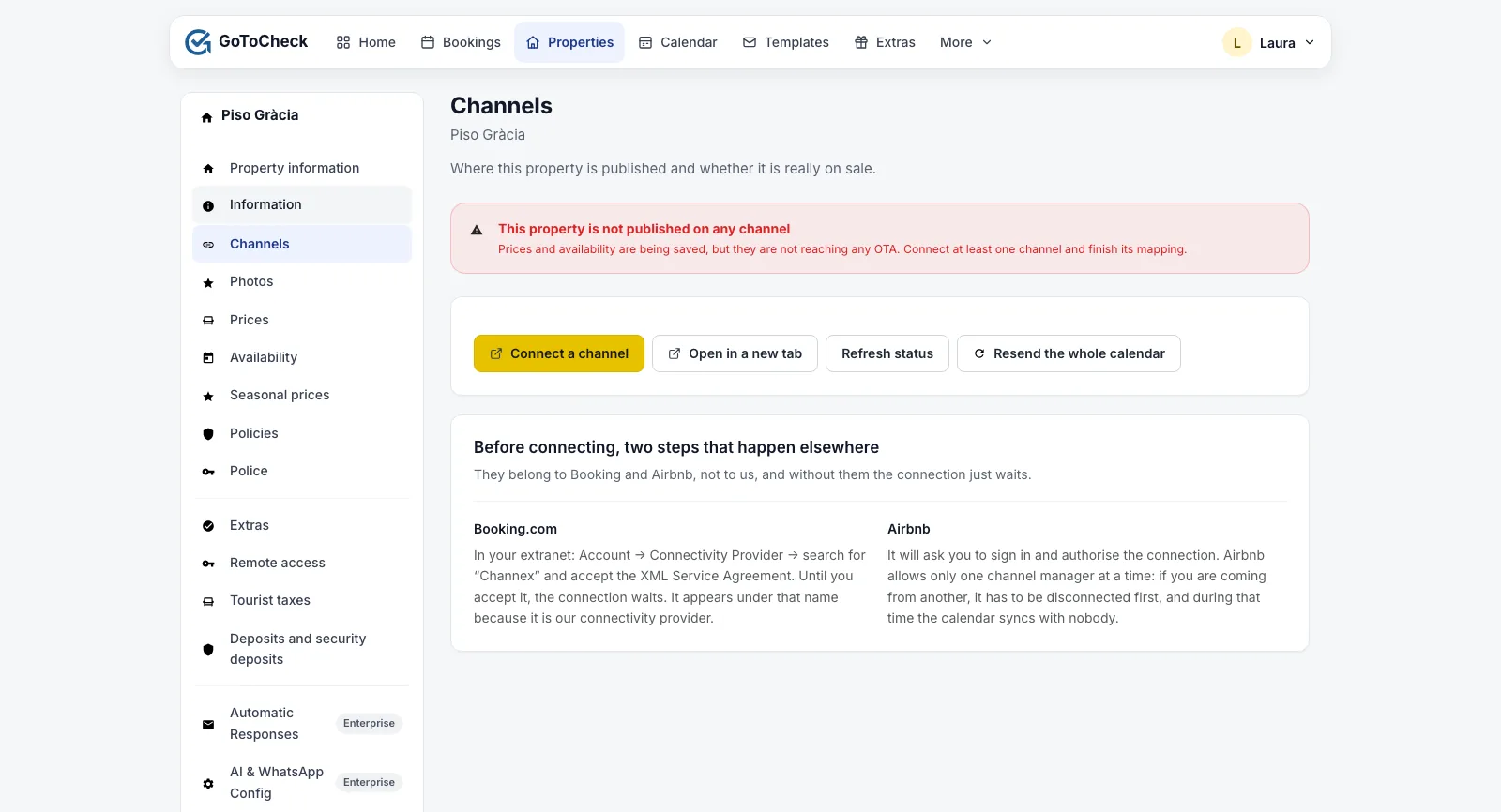
- In Properties, open the property and go to Channels.
- Click Connect a channel. The channels window opens.
Step 2. Prepare your Vrbo account
- On Vrbo, in the listing, go to Calendar › Import/export calendar and remove the imported iCal calendars (Airbnb, Booking…). From now on the channel manager closes the dates; with the iCal feeds in place they would be closed twice.
- Check that you do not have another program connected through the API to Vrbo. Vrbo accepts only one.
- Keep the mobile phone of the Vrbo account to hand: in the next step you receive a code by SMS.
Step 3. Connect with your username and the SMS code
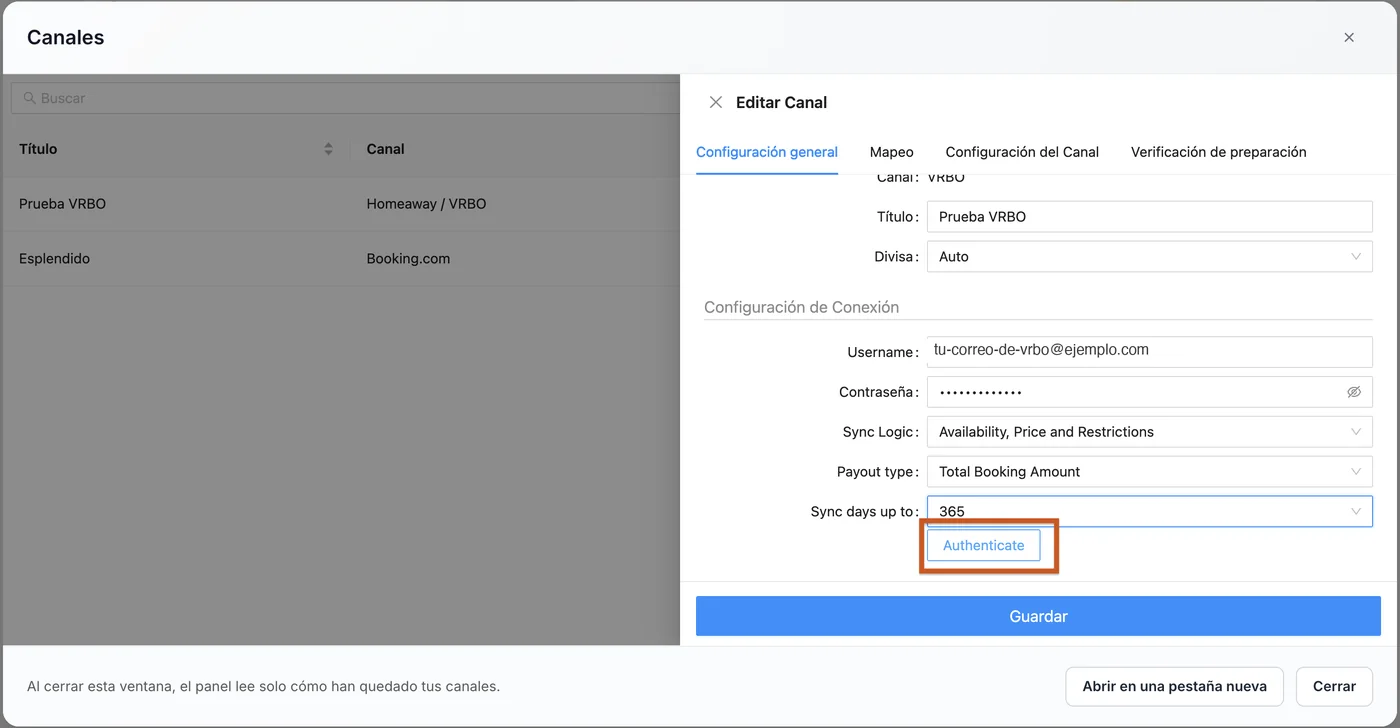
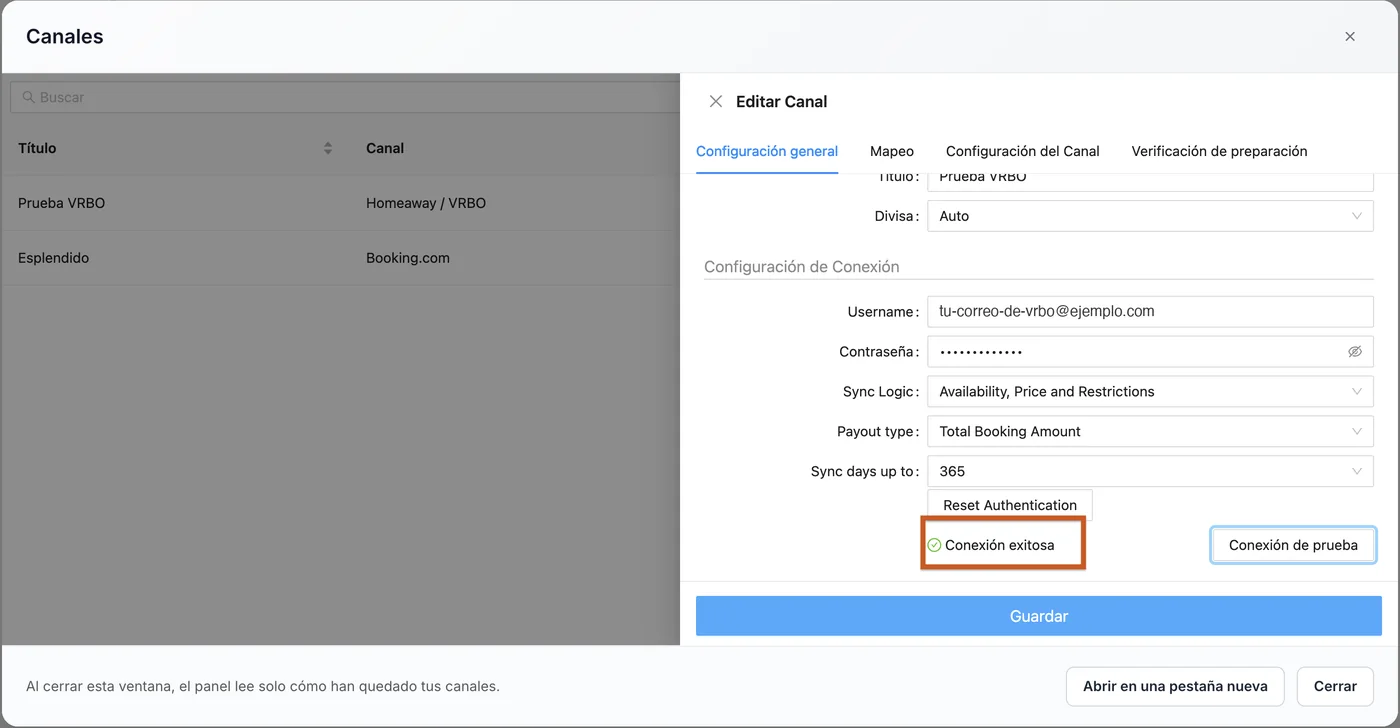
- In the channels window, in Channel, choose Vrbo and give it a title (your property name will do).
- In Username type your Vrbo email and in Password your Vrbo account password. Leave the three drop-downs below (Sync Logic, Payout type, Sync days) as they are.
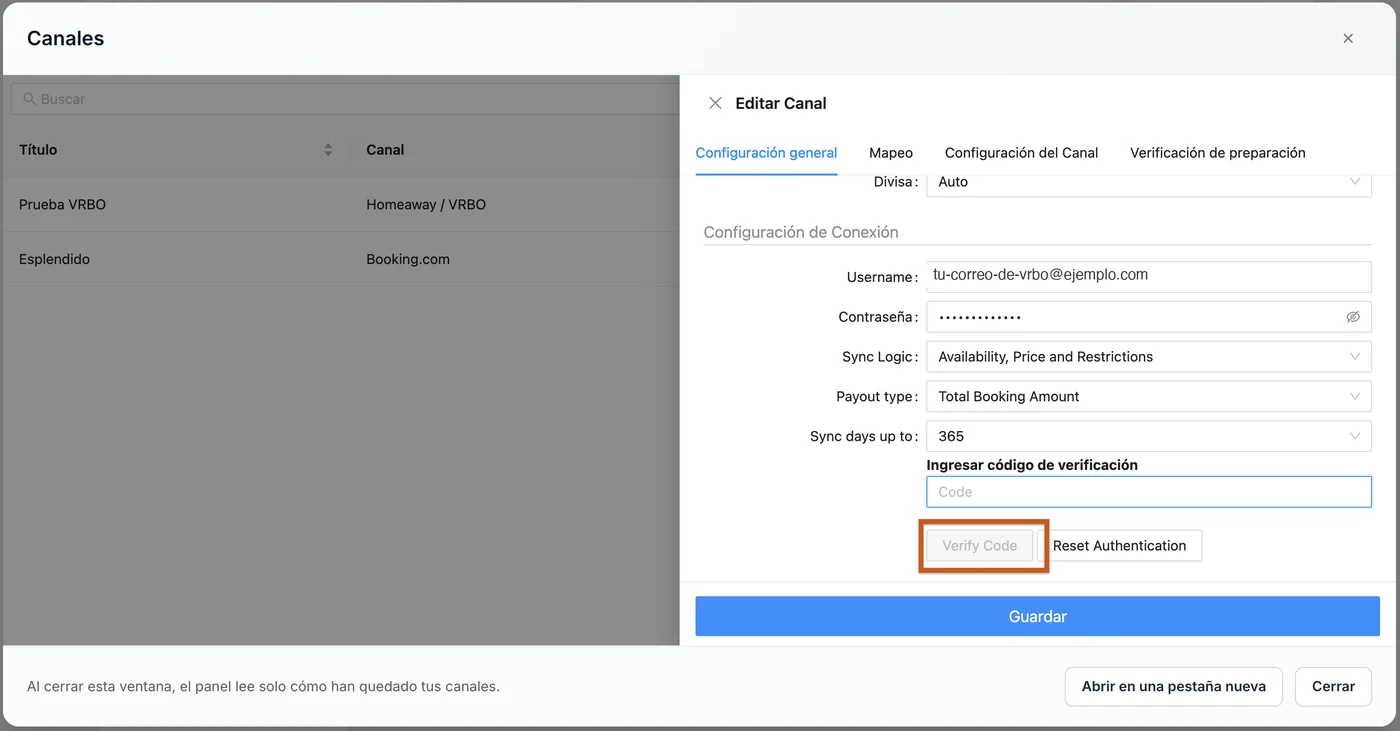
- Click Authenticate. Vrbo sends a code by SMS to your account's phone.
- Type the code in Enter verification code and click Verify Code.
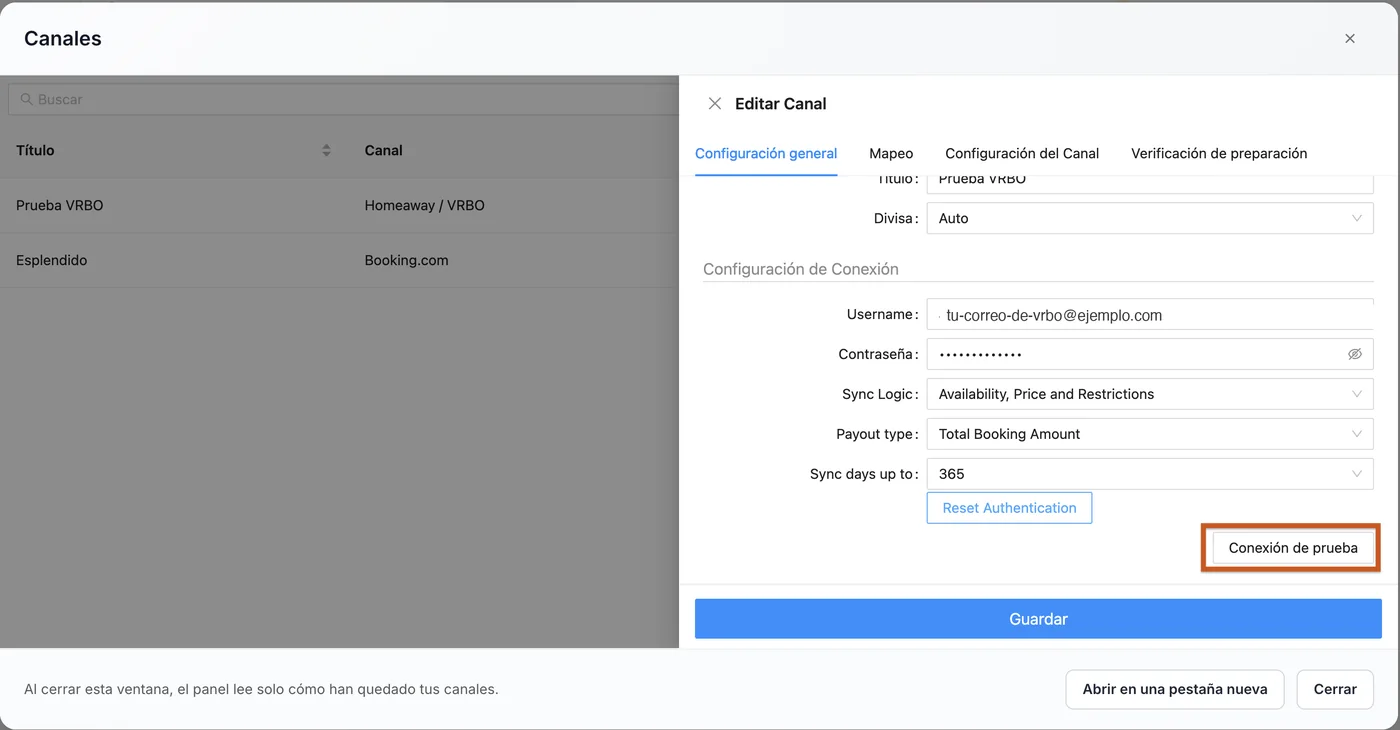
- Click Test connection, bottom right. It must say Connection successful.
- Click Save.
Do not save without passing the test connection. If you save the username and password without authenticating with the SMS, without the test and without pairing the listing, the channel is created but inactive, and Vrbo deactivates it again every time you switch it on. The fix is always the same: open the channel, click Authenticate, enter the code, pass the test connection and finish the mapping.
Step 4. Pair your listing (mapping)
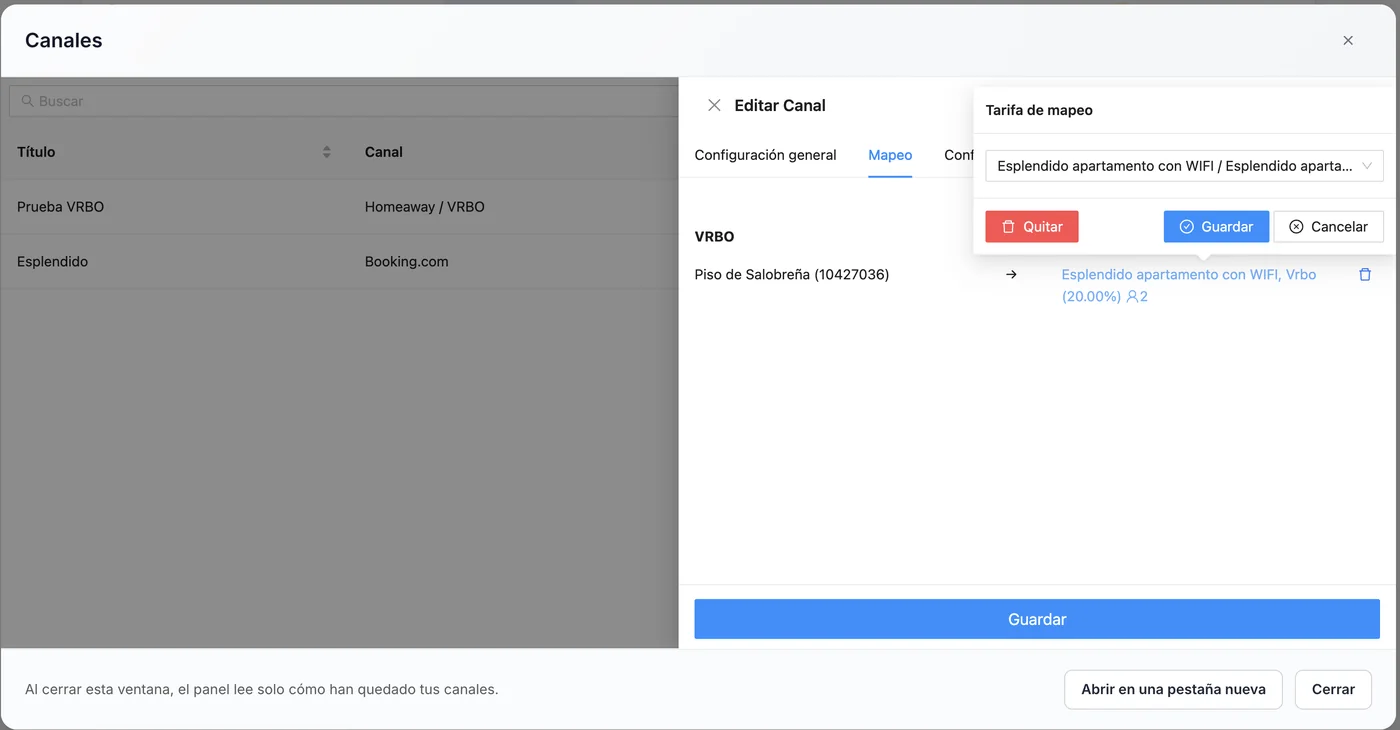
- The Mapping tab shows your Vrbo listing (with its number). Click to its right to choose the rate plan.
- In Rate mapping, choose your property with the GoToCheck rate plan “Vrbo (+X%)” (your price with the Vrbo markup you set in Prices) and click Save in the pop-up.
- Click Save at the bottom. The channel becomes active.
Step 5. Check that it is in sync
- Close the channels window.
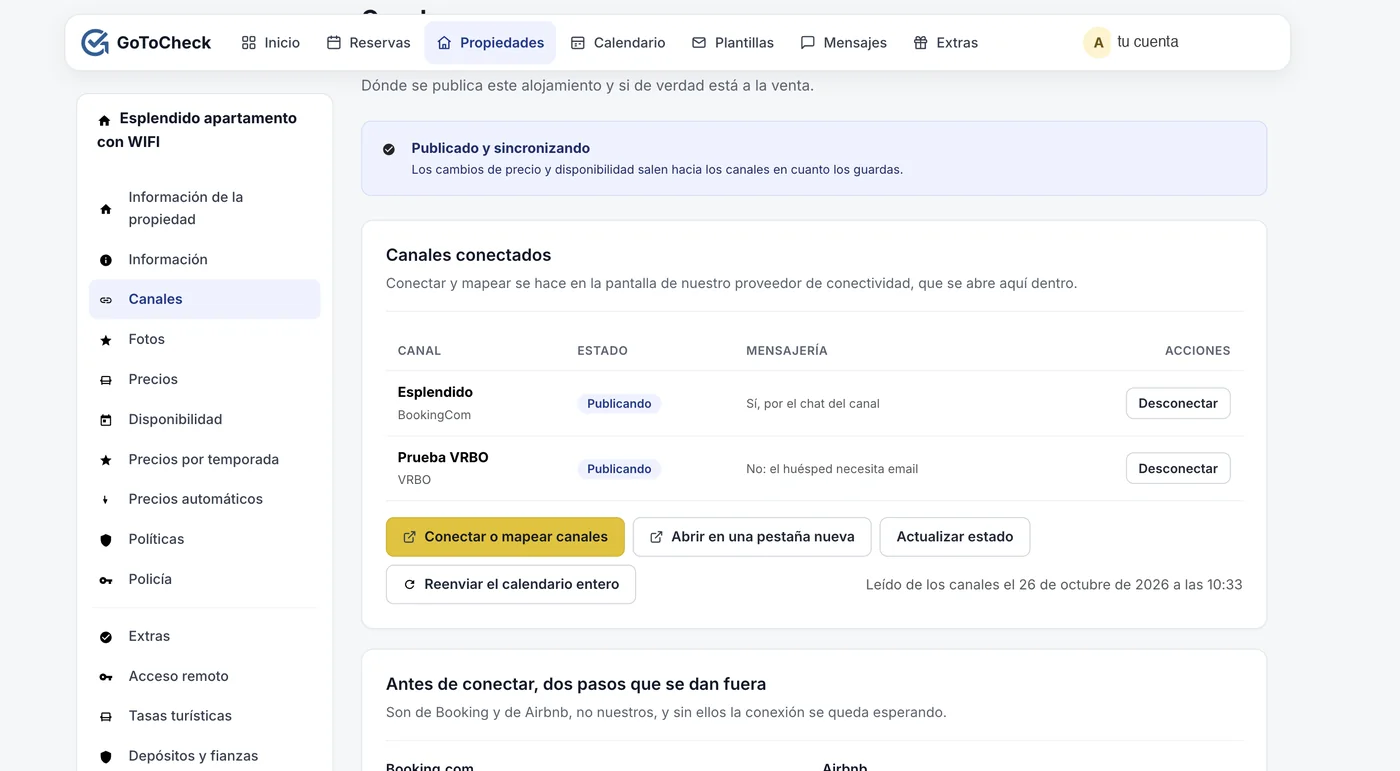
- Click Refresh status.
- You should see Published and syncing at the top, and the channel as Publishing.
- Go to Bookings and check that all the bookings you already had on Vrbo are there. Vrbo does not send them: if you already had bookings on Vrbo, enter them yourself (next section).
Done
From now on, price and availability changes go out to Vrbo as soon as you save them, and new Vrbo bookings arrive in your calendar, in online check-in and in the guest registration report.
The bookings you already had on Vrbo
Unlike Airbnb and Booking, Vrbo does not deliver the bookings made before the connection. So that those dates are closed on Airbnb and Booking straight away, enter them in the dashboard:
- In Bookings, click New booking.
- Type the guest's name, the dates and, if you have them, their email and phone number (you can see them in the booking on Vrbo).
- Save. Those nights are closed instantly on the other sites, and the guest can do the online check-in like anyone else.
Do it before activating the channel if you can: as long as those bookings are not in the dashboard, Airbnb and Booking still see those dates as free.
What reaches Vrbo and what does not
- Yes: the price per night (with the Vrbo markup), availability, the minimum stay and the check-in and check-out days.
- No: the extra guest charge, the cleaning fee, taxes or fees. Vrbo does not accept them through connectivity: they are set up on Vrbo itself (Calendar › Additional fees) and Vrbo applies them on top of the price we send.
- Vrbo receives a single price per night: the one for your base occupancy (two people). If you charge for extra guests, set it on Vrbo.
- Messages from Vrbo guests and reviews do not go through the channel manager: you keep handling them on Vrbo.
What each status means
On the Channels screen and in the Connection with the OTAs list, each channel shows one of these statuses:
| Status | What it means | What to do |
|---|---|---|
| not connected | It is not on that site. | Continue from step 1. |
| connected, not mapped | It looks connected, but nothing is published. On Vrbo it also shows like this when you saved without passing the test connection. | Open the channels window again and finish the Mapping tab. |
| publishing | Prices and availability reach the site, and its bookings come into your calendar. | Nothing. |
Common mistakes when connecting Vrbo
The channel activates and shortly afterwards is inactive again
The username and password are saved, but the test connection with the SMS code was not done or the listing was not paired. Vrbo does not treat a half-finished channel as connected. Open the channel, click Test connection, type the code you receive by SMS, finish the Mapping tab and activate.
Vrbo says the account is already connected to another program
You have another channel manager or PMS connected through the API. Disconnect it from that program and run the test connection again.
I changed my Vrbo password and it has stopped syncing
The connection uses your username and password: when you change it, it breaks. Open the channel, enter the new password and repeat the test connection.
A booking I already had on Vrbo does not show up
Vrbo does not send the bookings made before the connection. Enter it as a direct booking (section “The bookings you already had on Vrbo”).
The price on Vrbo does not match mine
Vrbo shows “per night” the total with its own charges and its service fee spread across the nights. What we send is the price per night with the Vrbo markup; cleaning, extra guests and taxes are added by Vrbo according to what you have set up there.
Frequently asked questions
Why does Vrbo ask me for a code by SMS?
Because the connection with Vrbo is made with your username and password, as if you were signing in yourself, and Vrbo verifies the access with your account's phone. It only asks for it when you test the connection.
Are the bookings I already had on Vrbo brought in?
No. Vrbo does not deliver the bookings made before the connection. Enter them in the dashboard as direct bookings so they close Airbnb and Booking; new ones do come in on their own.
Is the cleaning fee or the extra guest charge sent to Vrbo?
No. Vrbo does not accept them through connectivity: they are set up on Vrbo, in Calendar › Additional fees, and Vrbo applies them on top of the price per night we send.
Can I have Vrbo synced by iCal and by the channel manager at the same time?
Better not: dates would be closed twice and you would not know which one is in charge. With the channel manager connected, remove the imported iCal calendars on Vrbo.
What happens if I change my Vrbo password?
The connection breaks until you enter the new one in the channel and repeat the test connection.
Channel manager, online check-in and guest registration in one account
With GoToCheck, the bookings that come in from the sites go straight into online check-in and guest registration with the authorities, without copying data from one program to another.
Try it free for 30 daysStuck on a step? Write to us from your app.gotocheck.pro dashboard or on WhatsApp and we will go through it with you, step by step.