Google has no extranet like Booking or Airbnb: there is no Google account to create and no password to enter. Everything Google shows about your property comes from the details you have on GoToCheck. That is why, with Google, half the work comes before connecting: completing the information, uploading at least 8 photos and adding the house rules and the cancellation policy. Then you create the channel, pair the rates, and Google reviews the property before publishing it.
Before you start
- A GoToCheck account with the channel manager added.
- The property set up in the channel manager and priced. If you have not done that yet, start with How to set up your property in the channel manager.
- At least 8 good photos of the property.
- A website starting with https://: your own, or your property's page in GoToCheck's “My website”.
- Knowing how many bedrooms, bathrooms and beds it has.
This is what Google requires to accept a holiday rental, and where each item goes in GoToCheck:
| What Google asks for | Where it goes |
|---|---|
| Description | Information › What the guest reads |
| Address, country and coordinates | Information › Where it is |
| At least one facility | Information › Facilities |
| Phone and website with https:// | Information › Contact |
| At least 8 photos | Photos |
| Property rules | Policies › Check-in and check-out and House rules |
| Cancellation policy | Policies › Cancellation |
| Bedrooms, bathrooms and beds | In the Google channel itself (step 4) |
Step 1. Complete the property information
- In Properties, open the property and go to Information.
- In What the guest reads, write the Description. It is what anyone who finds your property on Google will read.
- In Where it is, fill in the full address: Address, City, Postcode and Country, and also the Latitude and Longitude. For Google, the coordinates are mandatory: they are how it places your pin on the map. You can get them in Google Maps by right-clicking on the building's front door.
- In Facilities, tick what the property has. Google asks for at least one; the more you tick, the better it shows up in the filters (wifi, parking, pool…).
- In Contact, add the Phone and the Website. The website must start with https://.
- Click Save and publish.
Use the same name, the same address and the same phone number as on your other sites. Google identifies each property by those three details: if they do not match, it may take it for a different one or take longer to approve it.
Step 2. Upload at least 8 photos
- Go to Photos and upload 8 photos or more.
- Drag them to put them in order: the first one is the cover photo. Google publishes the first 10, so put your best ones first.
You do not have to send them to Google yourself. As soon as the property has the Google channel, GoToCheck uploads the photos and the cancellation policy to Google on its own, within the next hour. And only to Google: no photos from here reach Booking or Airbnb; they keep the ones you already have there.
Step 3. Add the house rules and the cancellation policy
- Go to Policies.
- Fill in Check-in and check-out (the arrival and departure times) and House rules (guests, pets, smoking…).
- In Cancellation, choose the policy for this property or keep your default one.
- Save.
Google only allows one cancellation deadline: “free until X days before”. If your policy has several tiers, the strictest one is published on Google, so the guest is never promised more than you refund. If you do not have a policy yet, create one in the Channel manager › Cancellation policies menu.
Step 4. Create the Google channel
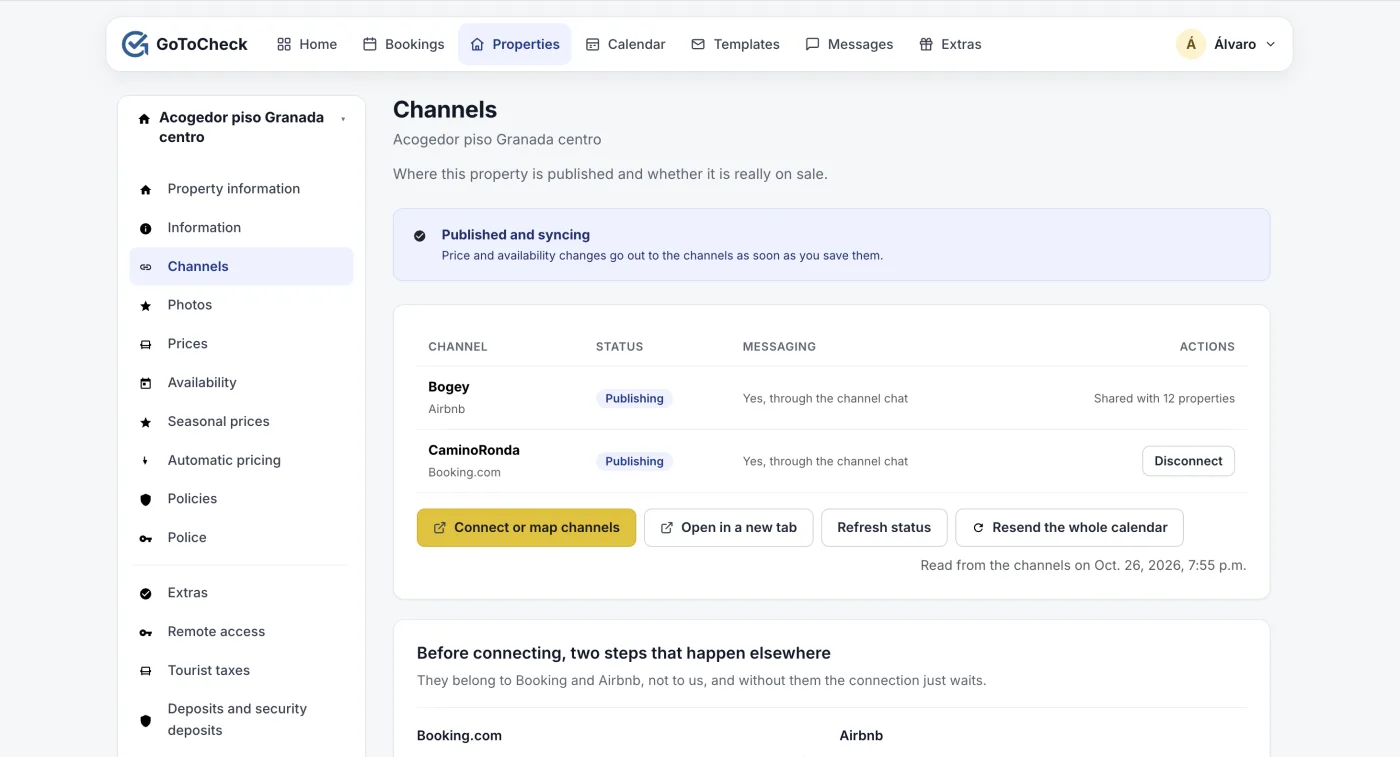
- Go to Channels and click Connect a channel (or Connect or map channels if you already have others). The channels window opens.
- Click Create, at the top right.
- In Channel, choose Google Hotel Search. In Title, enter your property name, and in Currency, your currency.
- Leave the Connection Settings boxes as they are.
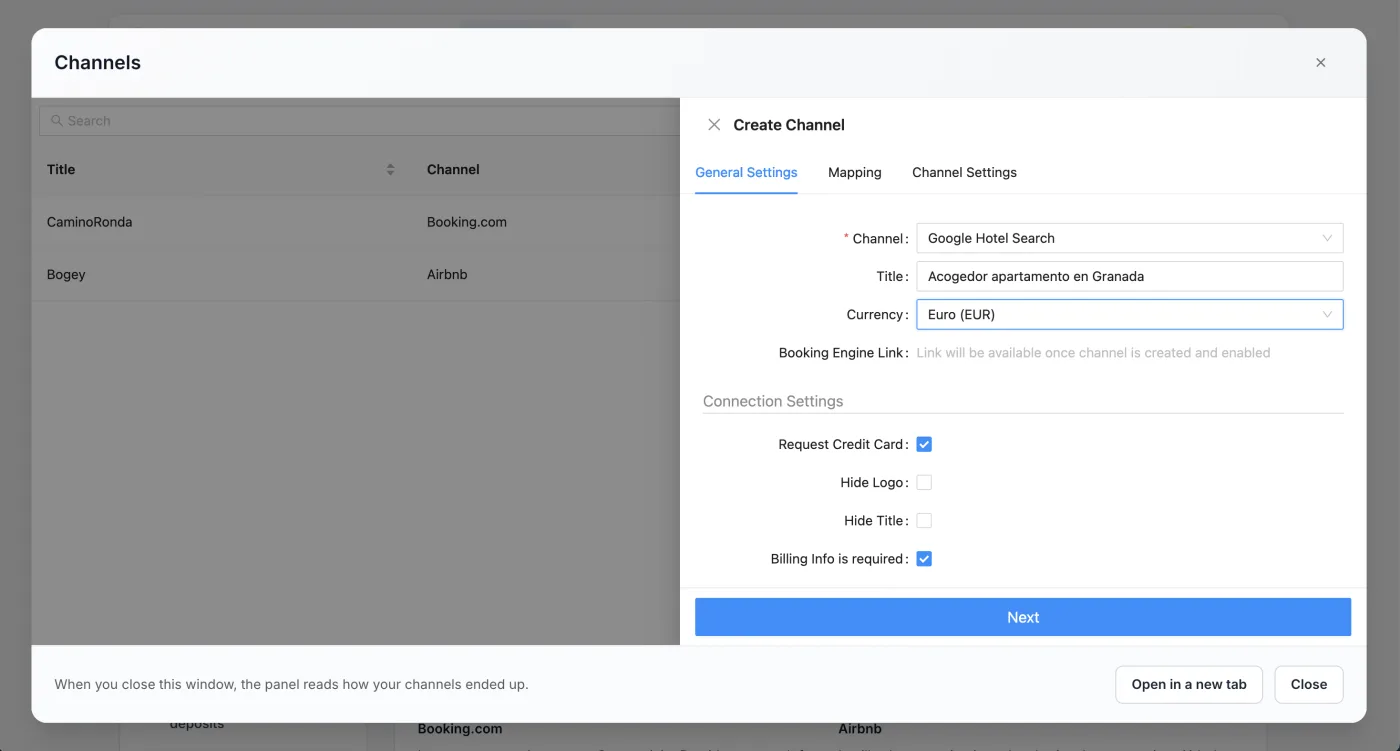
- Scroll down and fill in Beds count, Bedrooms count and Bathrooms count. Google asks for them for holiday rentals and shows them in the listing.
- Click Test Connection. It must say Successful Connection. It is normal for Channel Status to say Pending: Google has not reviewed it yet.
- Click Next.
Step 5. Pair the rates and activate the channel
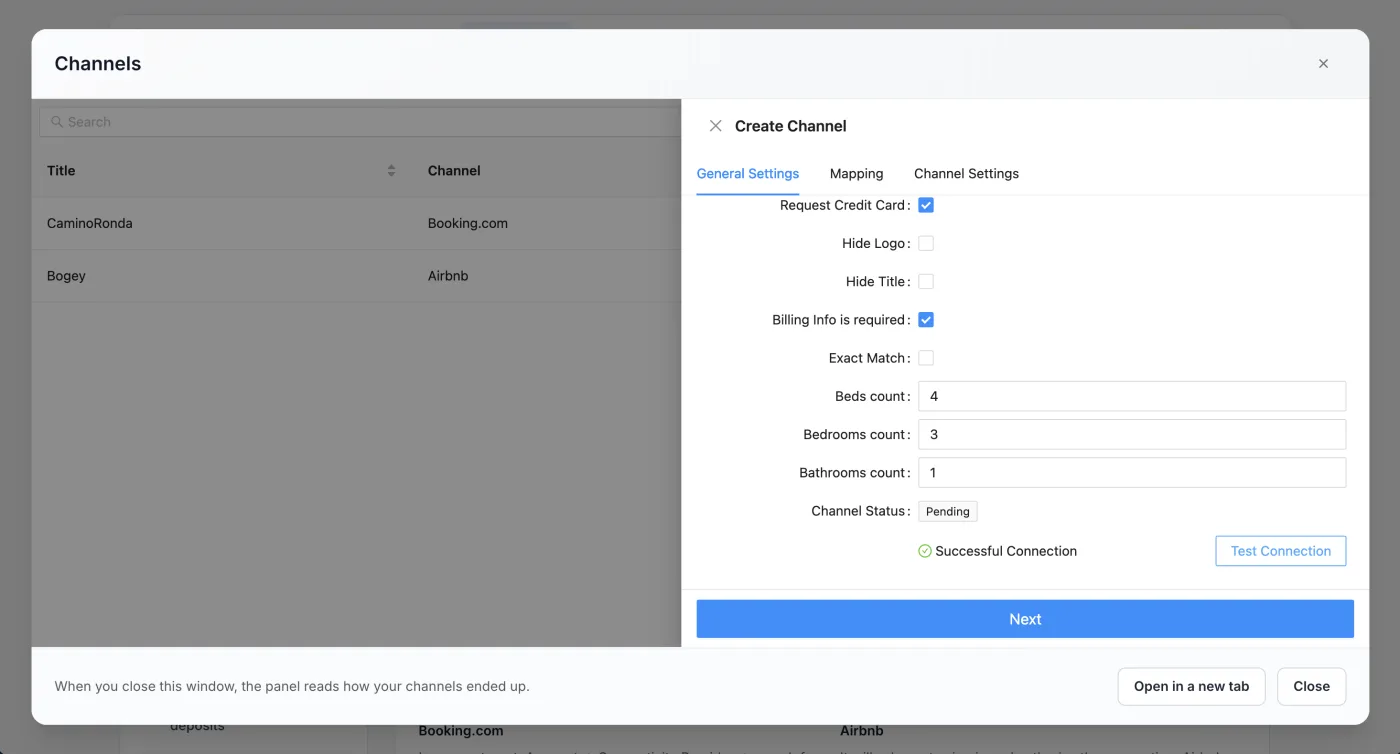
- The Mapping tab lists your property's rate plans, each with its number of guests (1, 2, 3…).
- Tick all the “Tarifa estándar” rate plans (standard rate), one for each number of guests. Each one is your price for that number of people: if you only tick the one for 2, anyone searching for 3 or 4 won't see your property.
- Do not tick the ones for the other sites (Airbnb, Booking.com…): they carry their markup.
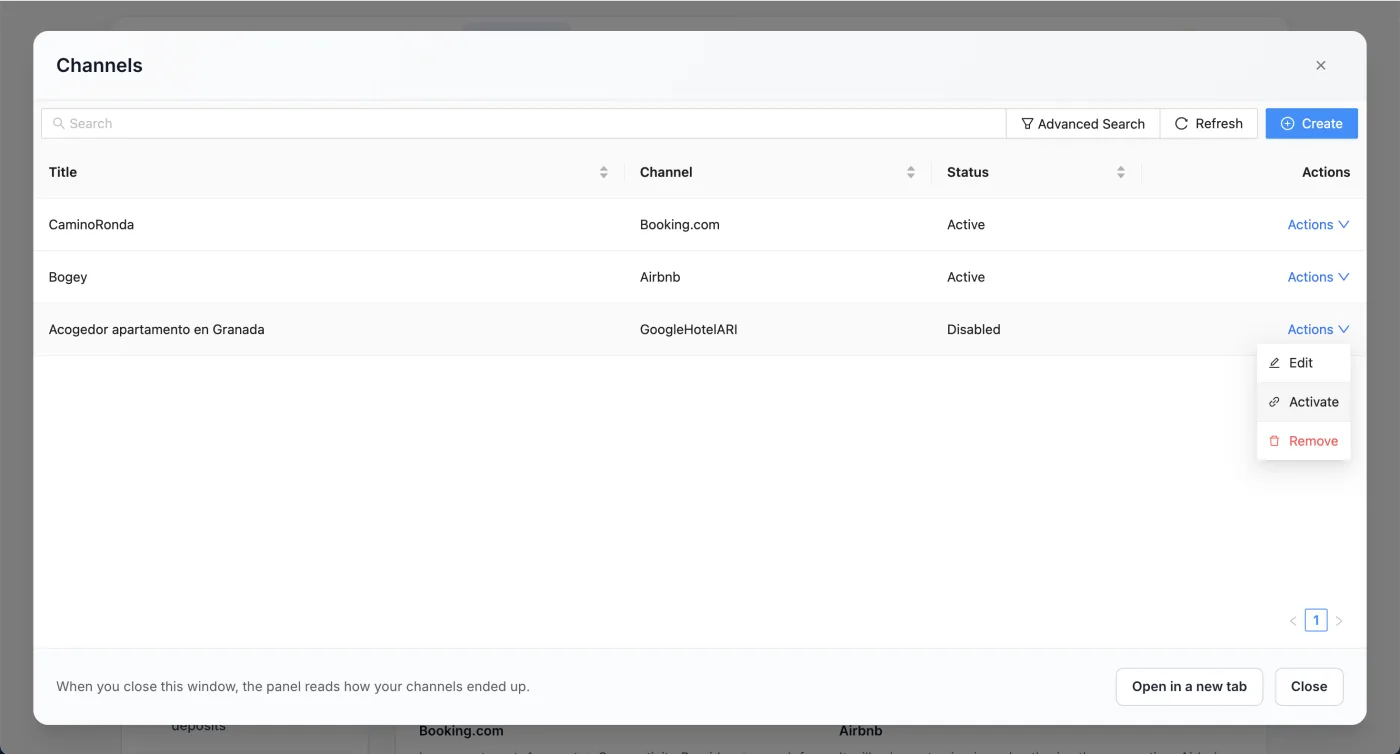
- Click Save. The channel appears in the list as GoogleHotelARI, with the status Disabled.
- In its row, open Actions and click Activate.
Do not forget “Activate”. Saved but not activated, the channel stays switched off and Google receives nothing.
Google allows only one property per channel. If you have several flats, each one has its own Google channel, even if they are in the same building.
Step 6. Wait for Google's review
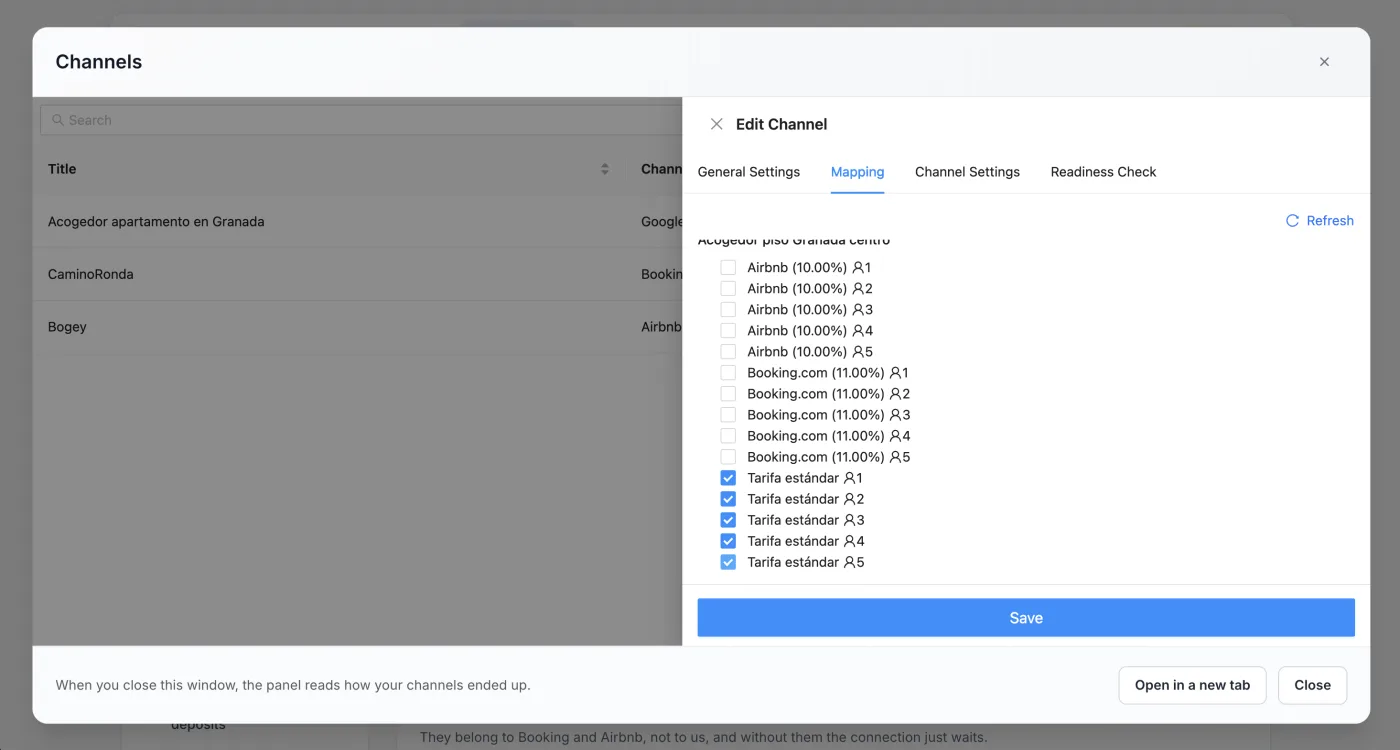
- Close the channels window. The Channels screen refreshes on its own.
- The Google channel shows as Pending Google review: Google is reviewing the property.
- Once it is approved, it changes to Publishing. It can take anything from a couple of days to about 4 weeks; you do not need to do anything in the meantime.
Done
Once Google approves it, your property appears with your prices and your availability, which are updated as soon as you change them in GoToCheck. Bookings that come in through Google arrive in your calendar, in online check-in and in the guest registration report, just like those from any other site.
Where your listing appears
- On Google Maps, as a pin with the price, when someone searches for accommodation in your area.
- On Google Hotels (google.com/travel), in the holiday rentals tab.
- In Europe, Google shows holiday rentals mainly on Maps and on google.com/travel, not in the normal list of search results.
- When they click “Book”, the guest goes to a booking page for your property, with your photos and your price. Google takes no commission.
What reaches Google and what does not
- Yes: the price per night of your standard rate (“Tarifa estándar”) for each number of guests, availability, the minimum stay, the photos (the first 10), the description, the address, the facilities, the house rules and the cancellation policy.
- No markup: Google charges no commission, so it receives your base price, without the percentage you set for Booking, Airbnb or Vrbo.
- If you change the photos, the description or the cancellation policy in GoToCheck, the change reaches Google too.
What each status means
On the Channels screen, the Google channel shows one of these statuses:
| Status | What it means | What to do |
|---|---|---|
| not connected | It has no Google channel. | Continue from step 1. |
| not mapped | The channel has been created, but with no rates paired: nothing is published. | Open the channels window again and finish the Mapping tab. |
| pending Google review | Everything is ready and Google is reviewing it. | Wait. It can take up to about 4 weeks. |
| publishing | Google has approved it: it appears with your prices and your availability. | Nothing. |
Common mistakes when connecting Google
The channel shows as “Disabled”
It was saved without clicking “Activate”. Open the channels window and, in the Google channel's row, click Actions › Activate.
When activating the channel, it says information is missing
Something from the table in “Before you start” is missing: almost always the coordinates, the website with https:// or the description. Complete it in Information and click “Save and publish”. If the only things missing are the photos or the cancellation policy, wait an hour: GoToCheck uploads them to Google on its own as soon as the channel exists.
It has been “Pending Google review” for weeks
Google reviews new properties once a week and sometimes takes a while. If more than 4 weeks go by, write to us and we will look into it with Channex, our connectivity provider.
It is published, but I cannot find it on Google
Look for it on Google Maps or on google.com/travel, not in the normal search. Also check the minimum stay: with a long minimum stay, Google shows it in fewer searches, because most people search for short stays.
Google shows a different address or the pin in the wrong place
Check the latitude and longitude in Information › Where it is, save and wait for Google to update it.
Frequently asked questions
Are Google Hotels and Google Vacation Rentals the same thing?
For a holiday rental, yes: it is the same Google accommodation search (google.com/travel and Google Maps), and it is connected with the same channel.
Do I need a Google account or a business profile?
No. Google has no extranet: everything it shows about your property comes from the details you fill in on GoToCheck.
Does Google charge commission on bookings?
No. Appearing on Google with this channel is free and Google charges no commission per booking.
How long does Google take to publish it?
Google reviews every new property before showing it. It can take anything from a couple of days to about 4 weeks; in the meantime, it shows as Pending Google review in Channels.
Do the photos I upload to GoToCheck also go to Booking and Airbnb?
No. The photos are only sent to Google, which has no other way of getting them. Booking and Airbnb keep the ones you have there.
Channel manager, online check-in and guest registration in one account
With GoToCheck, the bookings that come in from the sites go straight into online check-in and guest registration with the authorities, without copying data from one program to another.
Try it free for 30 daysStuck on a step? Write to us from your app.gotocheck.pro dashboard or on WhatsApp and we will go through it with you, step by step.