Agoda is connected in two places: first, in the Agoda extranet, you choose Channex as your channel manager; then, in the GoToCheck channels window, you type your Agoda Hotel ID and pair your property. You do not have to give your username or your password. Two things set it apart from Booking and Airbnb: Agoda always works with a price for each number of guests, so when you pair you will see one line per occupancy; and the bookings you already had on Agoda are not brought in on their own, you have to enter them in the dashboard.
Before you start
- A GoToCheck account with the channel manager added.
- The property set up in the channel manager and priced. If you have not done that yet, start with How to set up your property in the channel manager: it takes five minutes.
- Your property already published on Agoda, with its room and its rate created in the Agoda extranet (portal.agoda.com).
- Your Agoda Hotel ID: the 8-digit number shown at the top, next to your property's name, in the Agoda extranet.
- Agoda must not be connected to another channel manager. If it is, disconnect it first.
Step 1. Open the property's channels
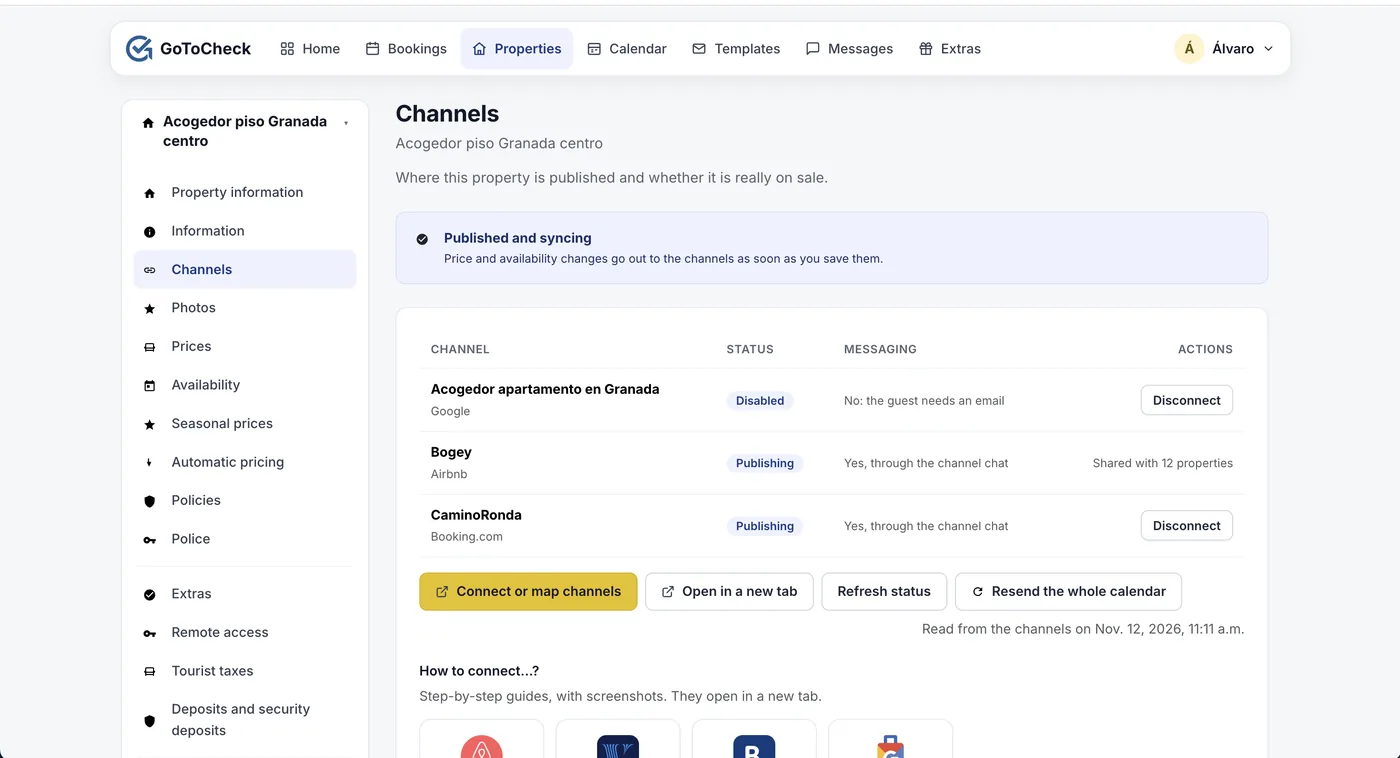
- In Properties, open the property and go to Channels.
- Do not click Connect or map channels yet: first you have to give Channex permission from Agoda (step 2).
Step 2. On Agoda, choose Channex as your channel manager
- Sign in to the Agoda extranet (portal.agoda.com) and choose your property at the top.
- Go to Rates and availability › Connectivity settings.
- Under How do you manage your rates and availability?, tick Channel manager.
- Under Select a channel manager, choose Channex.
- Click Save.
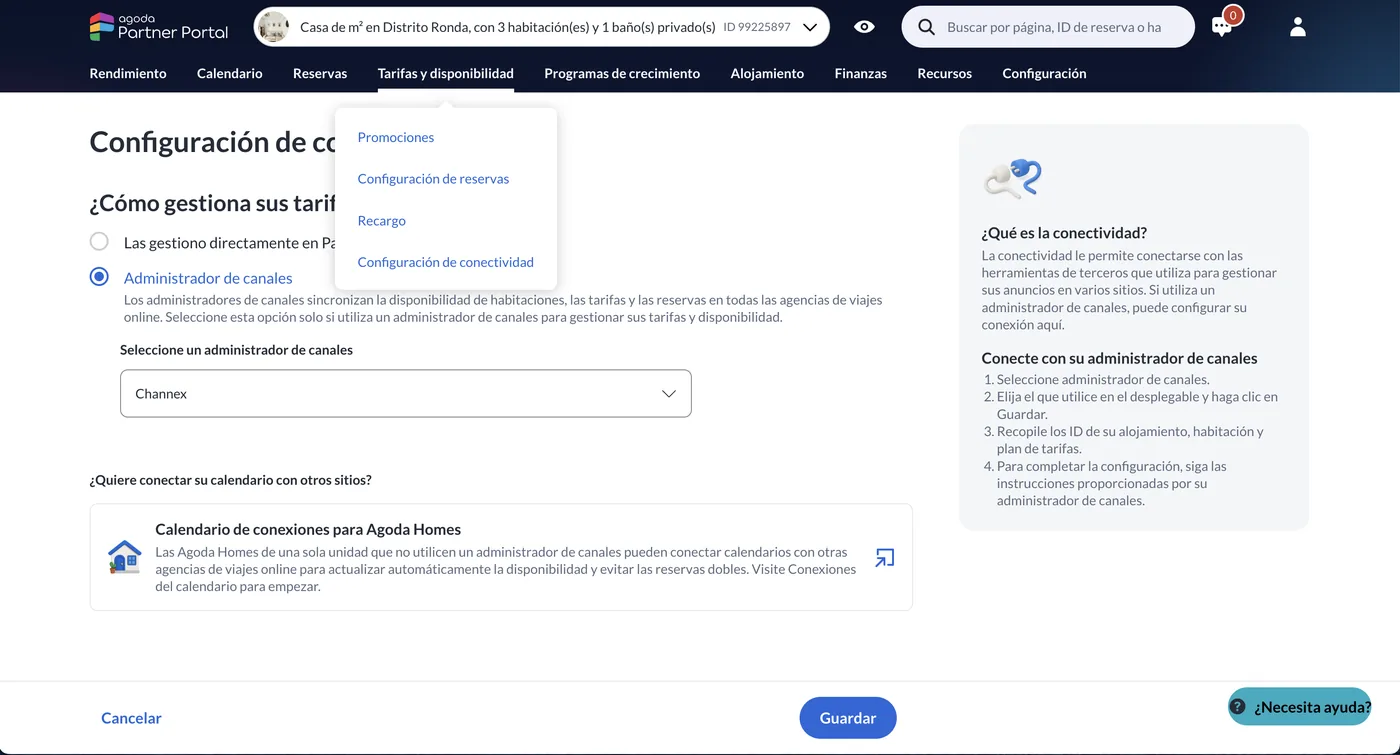
Why Channex and not GoToCheck? Channex is the connectivity platform the GoToCheck channel manager uses, and on Agoda it appears under that name. On the right, Agoda tells you to gather your property, room and rate plan IDs: you only need the property one (the Hotel ID); the rooms and rates show up on their own in step 4.
Agoda takes a few minutes to switch it on. Right after saving, the test connection in step 3 may work some times and fail others. If that happens, wait a little and try again. If you do not see Channex in the list, ask Agoda support, through the extranet messaging, to connect your property to Channex.
On that same screen, Agoda offers Calendar connections (iCal) for properties that do not use a channel manager. If you had calendars connected there (Airbnb, Booking…), remove them: from now on the channel manager closes the dates, and with the iCal feeds in place they would be closed twice.
Step 3. Connect with your Hotel ID
- Go back to Channels in GoToCheck and click Connect or map channels. The channels window opens.
- Click Create, choose Agoda and give it a title (your property name will do).
- In Hotel ID, type your Agoda Hotel ID.
- Tax Setting For Bookings: leave it on Inclusive. That way the amount of each booking in GoToCheck is what you get paid: taxes included and without the Agoda commission.
- Click Test Connection. It must say Successful Connection.
- Click Save.
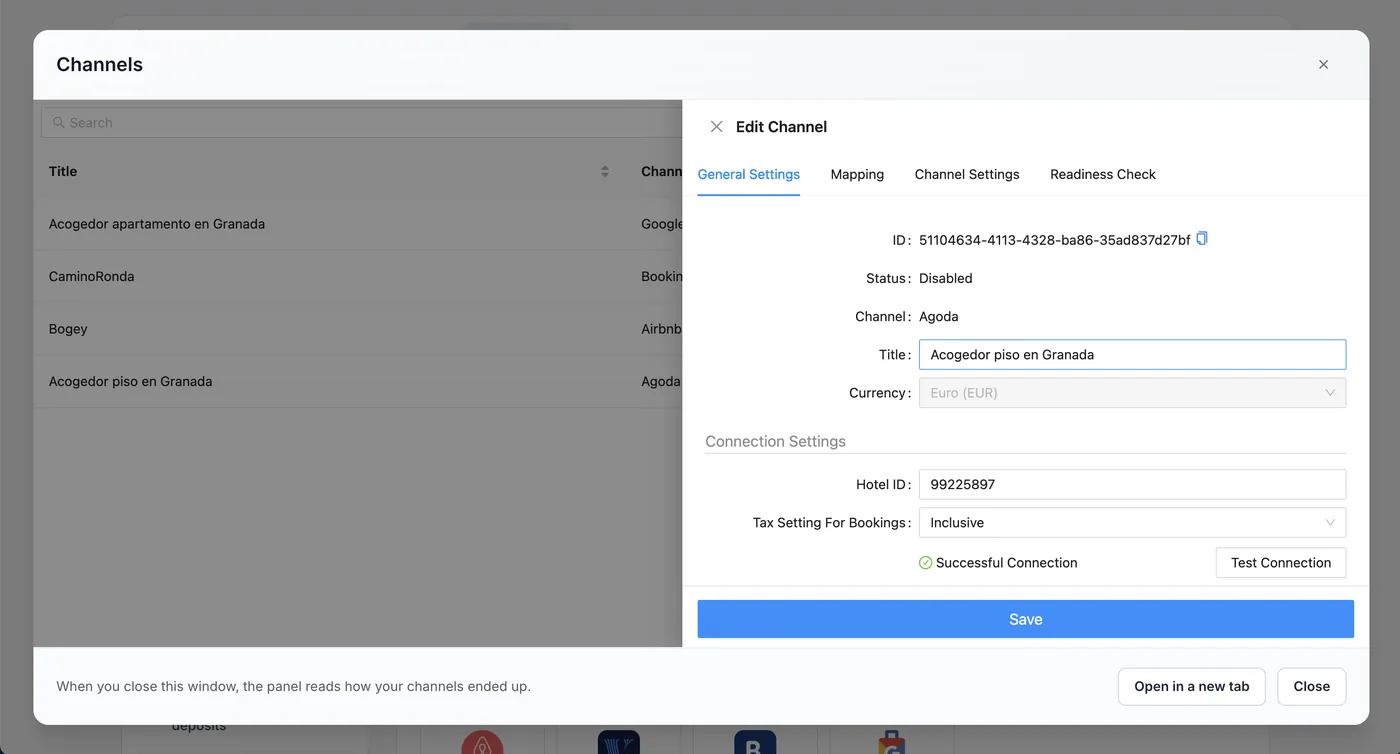
If the test connection fails, check the Hotel ID. If the number is right, Agoda has not switched Channex on yet: go back to step 2, wait a few minutes and try again.
Step 4. Pair your property and activate the channel
- Open the Mapping tab. On the left is your Agoda property and, below it, its rate with one line for each number of guests (1, 2, 3…).
- Pair the Agoda property with your GoToCheck property.
- Pair each line with the GoToCheck rate plan for the same number of guests: 1 with 1, 2 with 2… If you have no Agoda markup, choose the “Tarifa estándar” rate plan (standard rate) for all of them; if you set an Agoda markup in Prices, the “Agoda (+X%)” rate plan.
- Do not leave any line unpaired: an occupancy without a rate is a price Agoda does not receive.
- Click Save. It asks whether you want to activate the channel: click Save & Activate. When you activate it, your prices and availability are sent to Agoda.
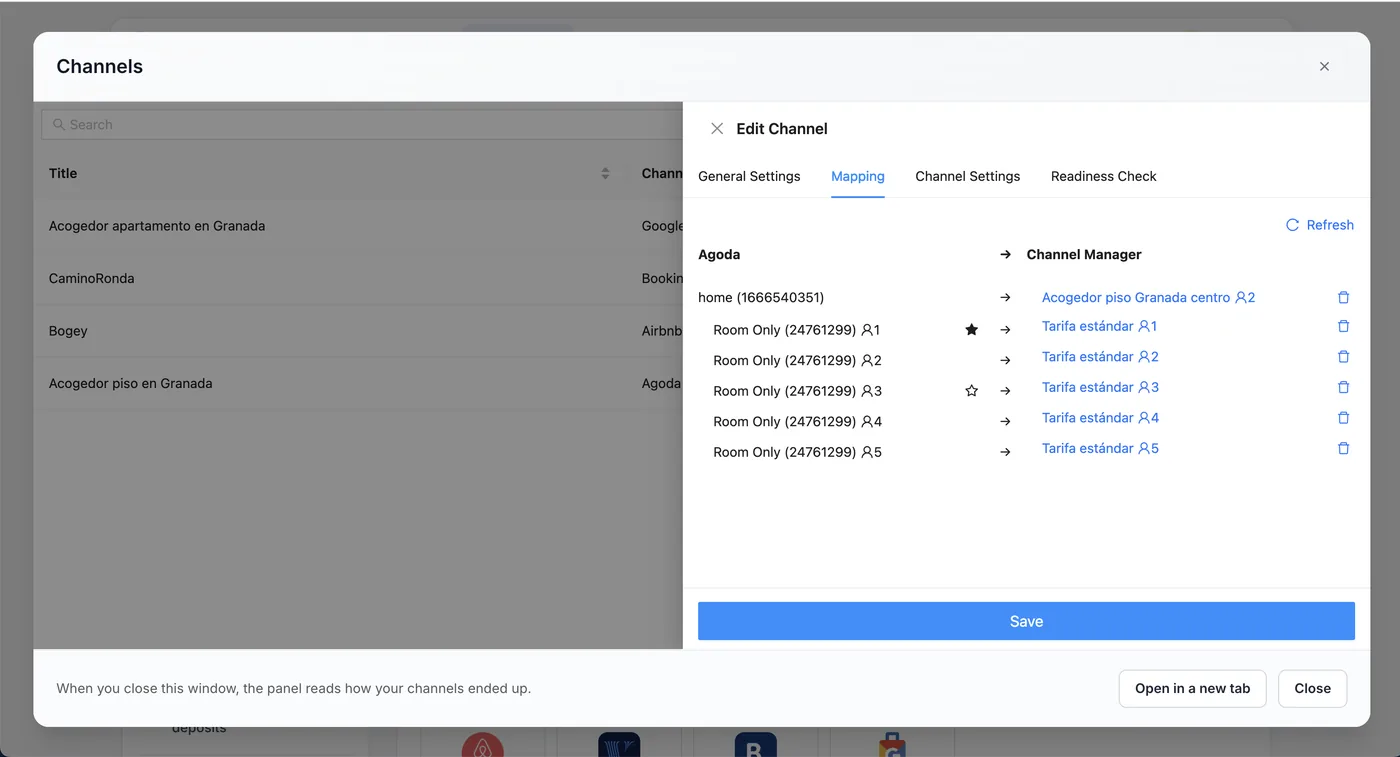
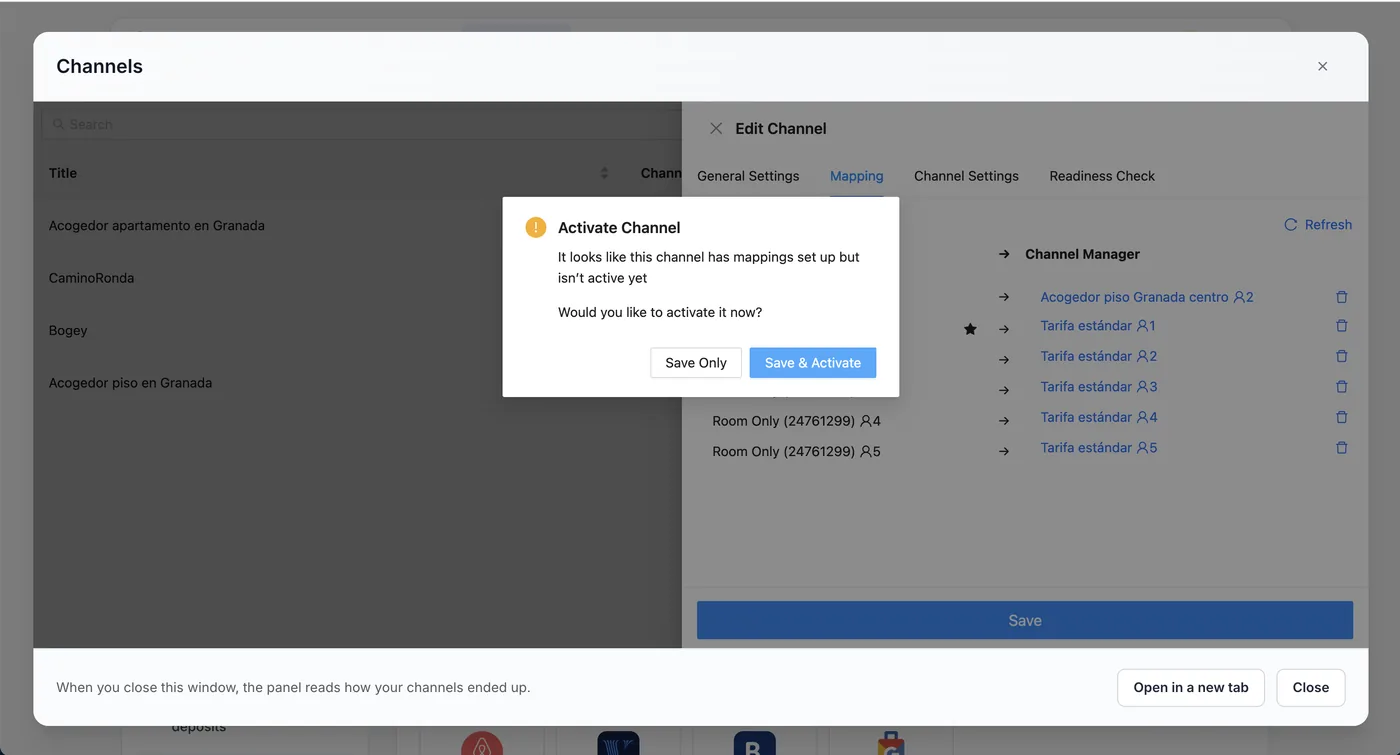
The star marks the primary occupancy: the one that carries availability and restrictions to Agoda (the others only carry the price). It is ticked on its own and you do not need to touch it.
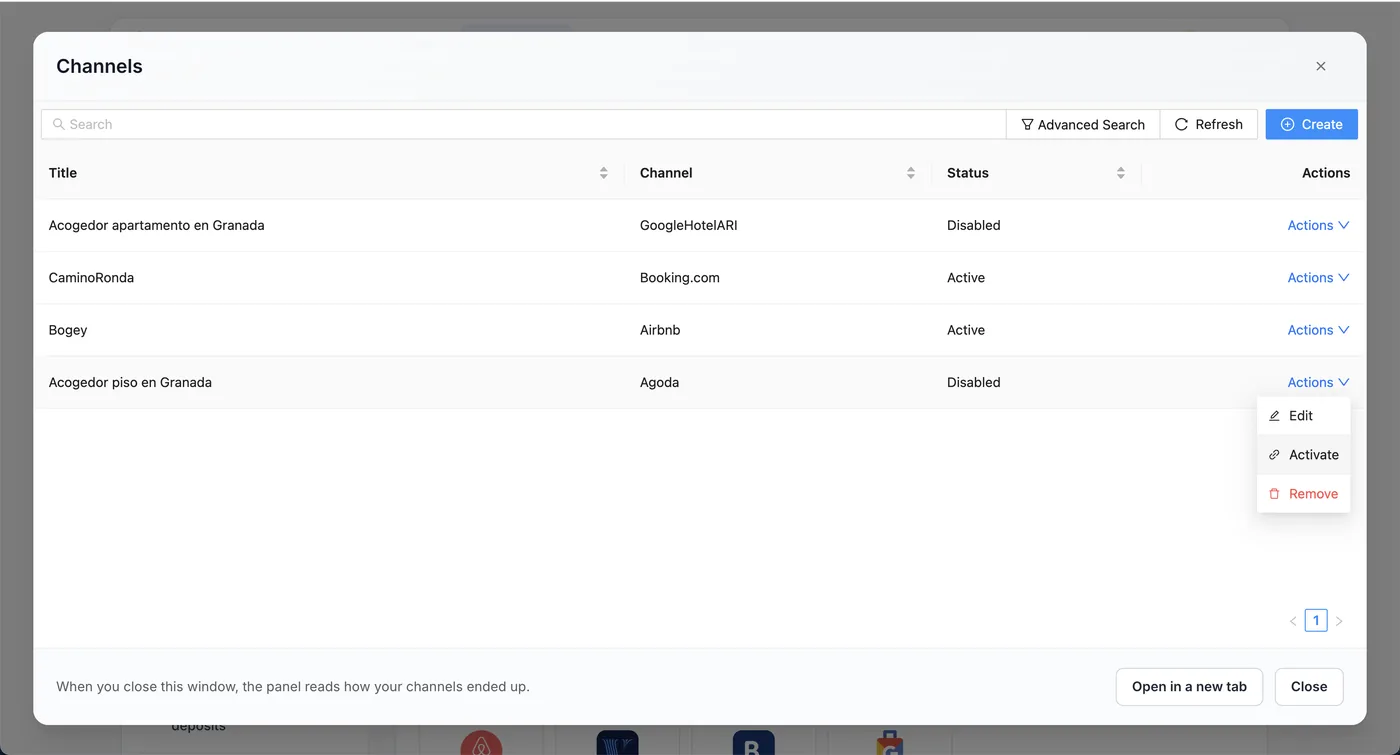
Did you click “Save Only”? The channel is saved but deactivated. Activate it from the channel list: in the Agoda row, Actions › Activate.
Step 5. Check that it is in sync
- Close the channels window.
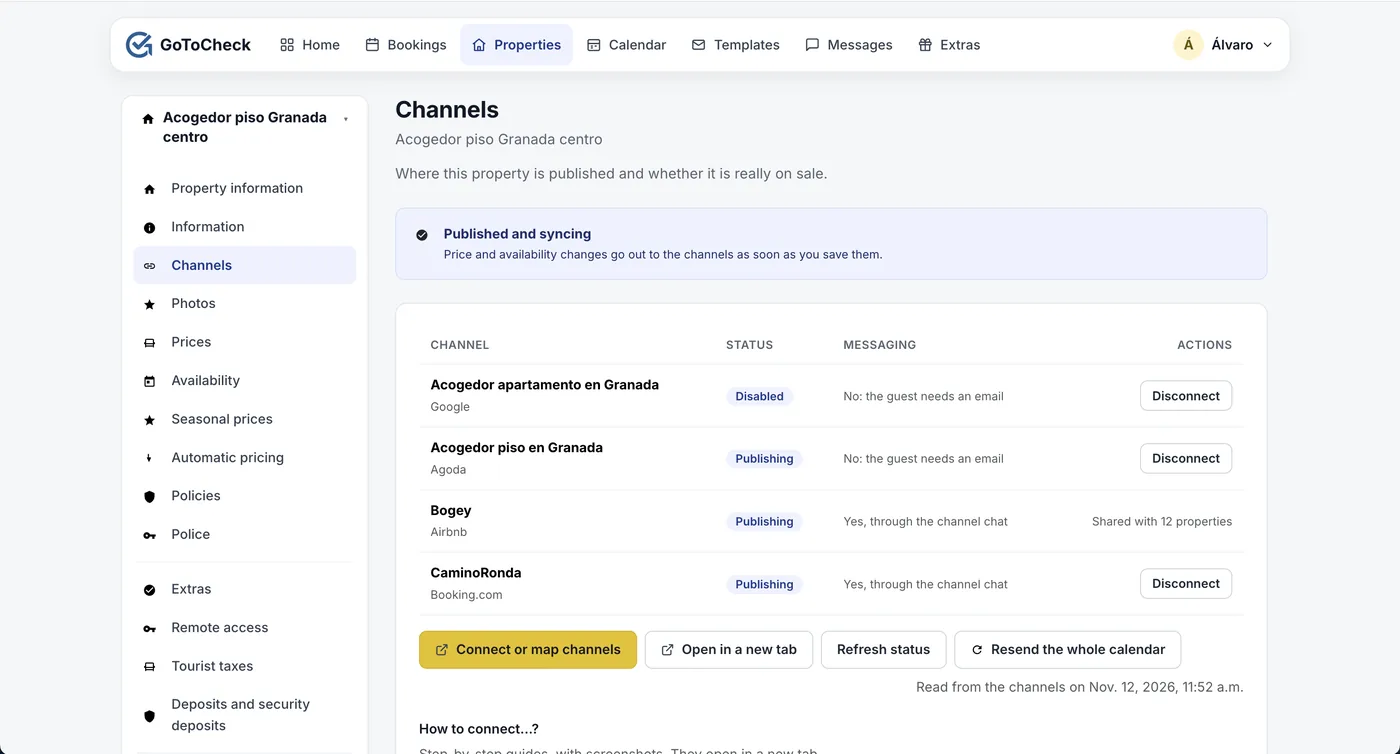
- Click Refresh status.
- You should see Published and syncing at the top, and Agoda as Publishing.
- In the Agoda extranet, look at the calendar for the next few days: your GoToCheck prices must be there.
- Go to Bookings and enter the ones you already had on Agoda (next section).
Done
From now on, price and availability changes go out to Agoda as soon as you save them, and new Agoda bookings arrive in your calendar, in online check-in and in the guest registration report.
The bookings you already had on Agoda
Unlike Airbnb and Booking, Agoda does not deliver the bookings made before the connection. So that those dates are closed on the other sites straight away, enter them in the dashboard:
- In Bookings, click New booking.
- Type the guest's name, the dates and, if you have them, their email and phone number (you can see them in the booking in the Agoda extranet).
- Save. Those nights are closed instantly on the other sites, and the guest can do the online check-in like anyone else.
Do it before activating the channel if you can: as long as those bookings are not in the dashboard, the other sites still see those dates as free.
What reaches Agoda and what does not
- Yes: the price per night for each number of guests (with the Agoda markup, if you set one), availability, the minimum stay and the check-in and check-out days.
- No: the cleaning fee, taxes or fees. They are set up in the Agoda extranet itself.
- The currency is that of your property on Agoda: if it is not the same as yours, prices are converted when they are sent.
- Messages from Agoda guests do not go through the channel manager: you keep handling them on Agoda. The check-in link reaches the guest by email, if the booking includes one.
- You keep handling reviews on Agoda.
What each status means
On the Channels screen and in the Connection with the OTAs list, each channel shows one of these statuses:
| Status | What it means | What to do |
|---|---|---|
| not connected | It is not on that site. | Continue from step 1. |
| connected, not mapped | It looks connected, but nothing is published. On Agoda it also shows like this when you saved without activating. | Open the channels window again, finish the Mapping tab and activate the channel. |
| publishing | Prices and availability reach the site, and its bookings come into your calendar. | Nothing. |
Common mistakes when connecting Agoda
The test connection fails
Either the Hotel ID is wrong, or Agoda has not yet switched Channex on as your channel manager (step 2). Right after choosing Channex it may fail on and off for a few minutes. If it still fails after a while, ask Agoda support to check that your property is connected to Channex.
Agoda says there is already another channel manager
In Connectivity settings, replace the previous one with Channex (or disconnect it first from that program).
On Agoda the price for 1 guest (or for 3, 4…) is missing
That mapping line was left unpaired. Open the channels window and pair them all.
A booking I already had on Agoda does not show up
Agoda does not send the bookings made before the connection. Enter it as a direct booking (section “The bookings you already had on Agoda”).
Frequently asked questions
Do I have to give my Agoda username and password?
No. Only the Hotel ID. You give the permission yourself in the Agoda extranet when you choose Channex as your channel manager.
Are the bookings I already had on Agoda brought in?
No. Agoda does not deliver the bookings made before the connection. Enter them in the dashboard as direct bookings; new ones do come in on their own.
Why do I see so many lines in the mapping?
Because Agoda asks for a price for each number of guests. Pair each line with the GoToCheck rate plan for the same number of guests.
Can I have Agoda synced by iCal and by the channel manager at the same time?
Better not: dates would be closed twice and you would not know which one is in charge. With the channel manager connected, remove the Agoda calendar connections.
How do I disconnect Agoda?
Deactivate the channel in GoToCheck and, in the Agoda extranet, set Connectivity settings back to managing your rates directly. The bookings that already came in stay.
Channel manager, online check-in and guest registration in one account
With GoToCheck, the bookings that come in from the sites go straight into online check-in and guest registration with the authorities, without copying data from one program to another.
Try it free for 30 daysStuck on a step? Write to us from your app.gotocheck.pro dashboard or on WhatsApp and we will go through it with you, step by step.