To connect Airbnb and Booking.com to a channel manager you need to do four things: set up the property, give it a price, authorise the channel manager on each site (on Booking.com as your connectivity provider, on Airbnb by signing in) and pair each listing with its property, which is called mapping. From then on, every booking, price or block you change goes out to both sites on its own.
A channel manager is the software that keeps the calendar, prices and bookings of your property in sync across every site where you list it. Without one, every Booking.com reservation means blocking those dates by hand on Airbnb, and a single slip ends in a double booking. This guide uses the GoToCheck channel manager, which connects to the sites through Channex, an official connectivity provider.
Before you start
- A GoToCheck account with the channel manager added.
- Access to the Booking.com extranet with a user who can change the connectivity settings, and to your Airbnb account.
- The maximum number of guests for each property, because it is fixed when you set it up.
- If you use another channel manager today, bear in mind that Booking.com and Airbnb only accept one at a time. When you connect this one, the previous one stops syncing.
Step 1. Open Connection with the OTAs
Click your name in the top right corner and open the Dashboard. In the menu on the left, go to Channel manager › Connection with the OTAs. Everything starts on that screen.
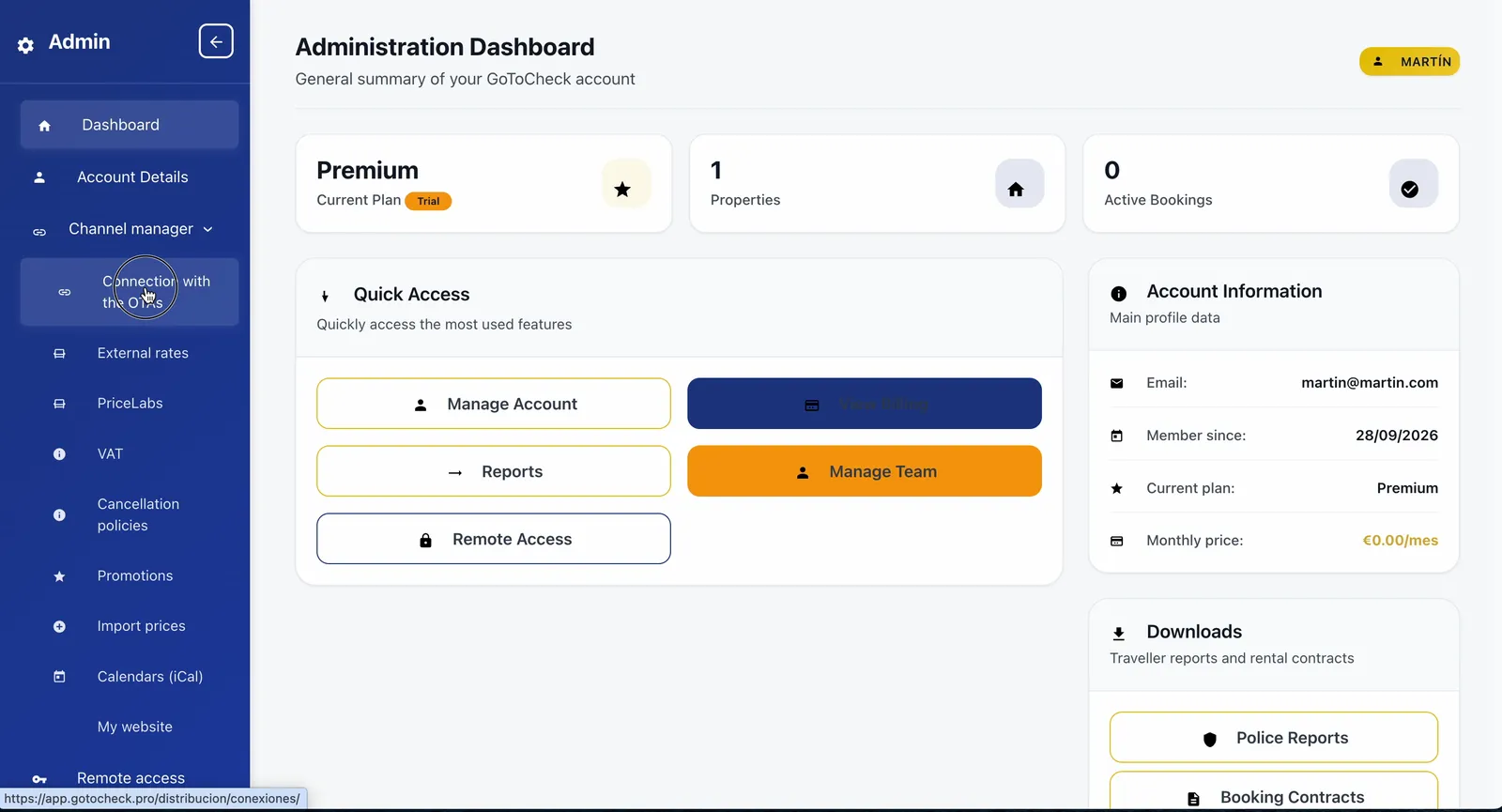
Step 2. Add the property to the channel manager
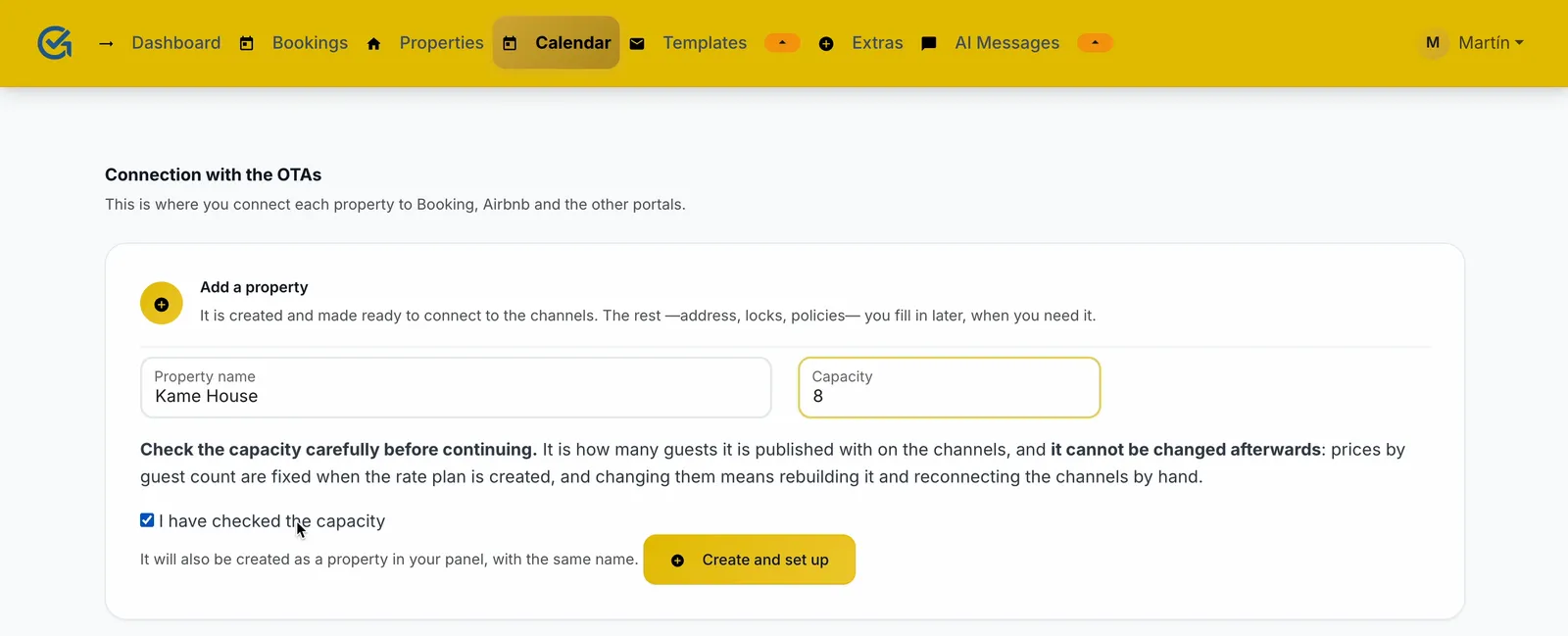
- In the Add a property card, type the name and the capacity.
- Tick I have checked the capacity.
- Click Create and set up.
Check the capacity carefully. It is the number of guests the property is published with on each site, and it cannot be changed later without rebuilding the rate plan and reconnecting the channels.
If the property already exists in your dashboard, you do not need to create it again: open it, go to Prices and click Set up.
Step 3. Set a price before connecting
Do it before connecting the sites, so the property never goes on sale without a price.
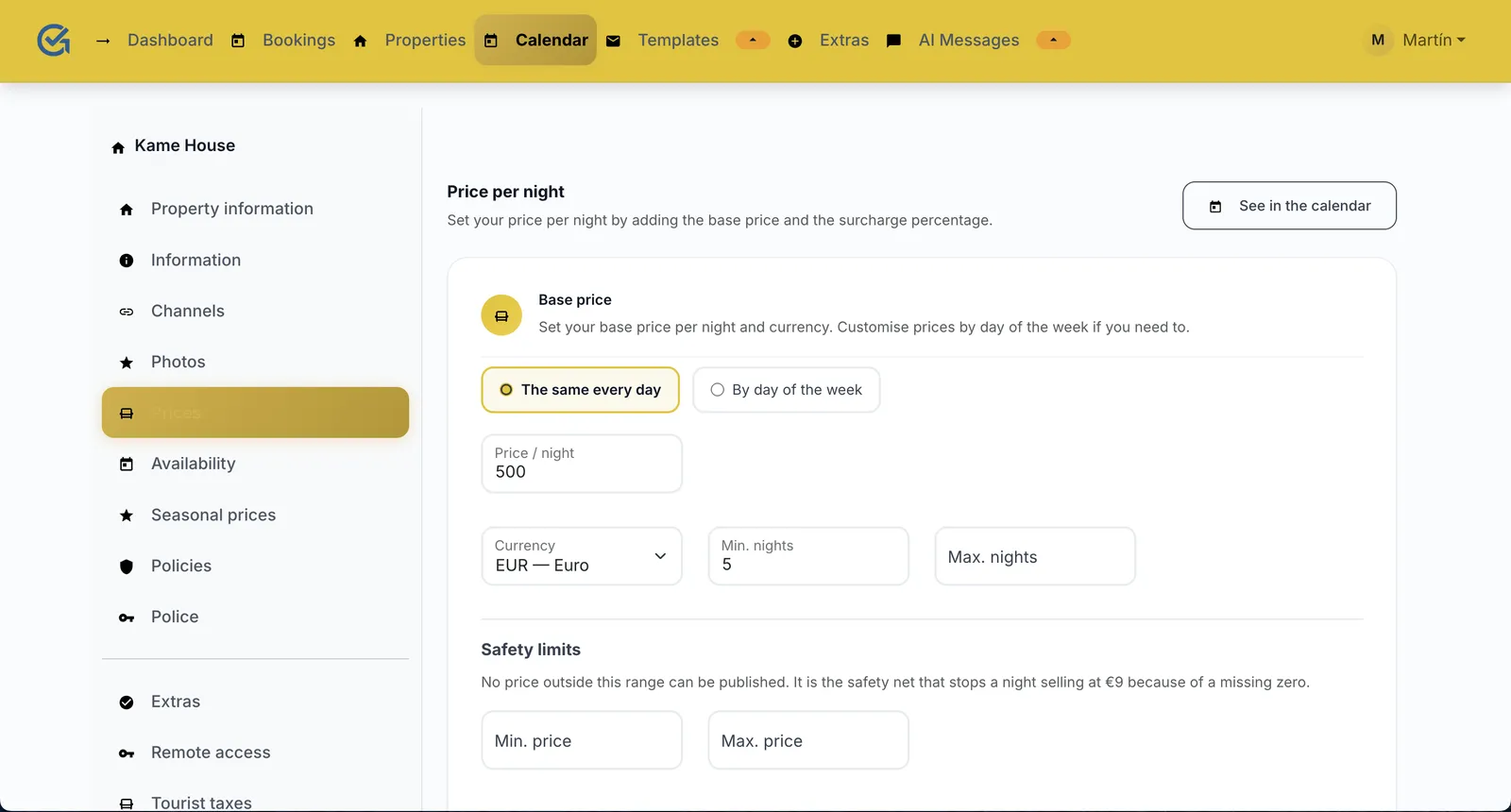
- In Properties, open the property and go to Prices.
- Type the price per night and, if you like, the minimum nights.
- Save.
Seasonal prices, prices by day of the week and the safety limits can be adjusted later in the same section.
Step 4. Open the property's channels
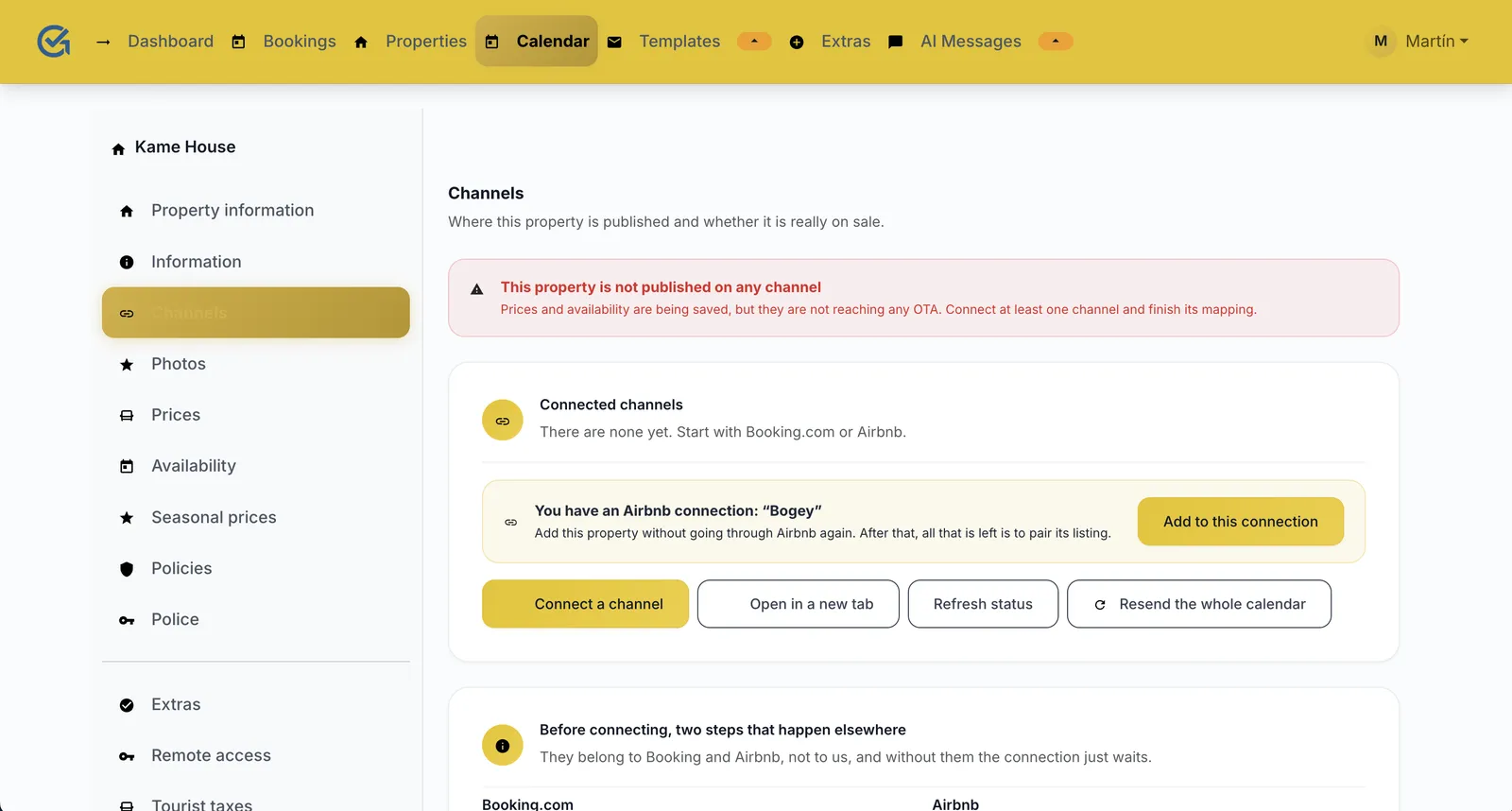
- In Properties, open the property and go to Channels.
- Click Connect a channel. The channels window opens.
While no channel is connected, the screen warns you that the property is not published anywhere. Further down you will find the Before connecting, two steps that happen elsewhere card, which explains what to do on Booking.com and on Airbnb.
Step 5. Connect Booking.com: connectivity provider and Hotel ID
Booking.com is connected in two places: first you authorise the channel manager in your extranet, then you link it from the channels window.
In the Booking.com extranet
Go to Account › Connectivity Provider, search for Channex and accept the XML Service Agreement. It shows up under that name because it is our connectivity provider. Until you accept it, the connection stays pending.
In the channels window
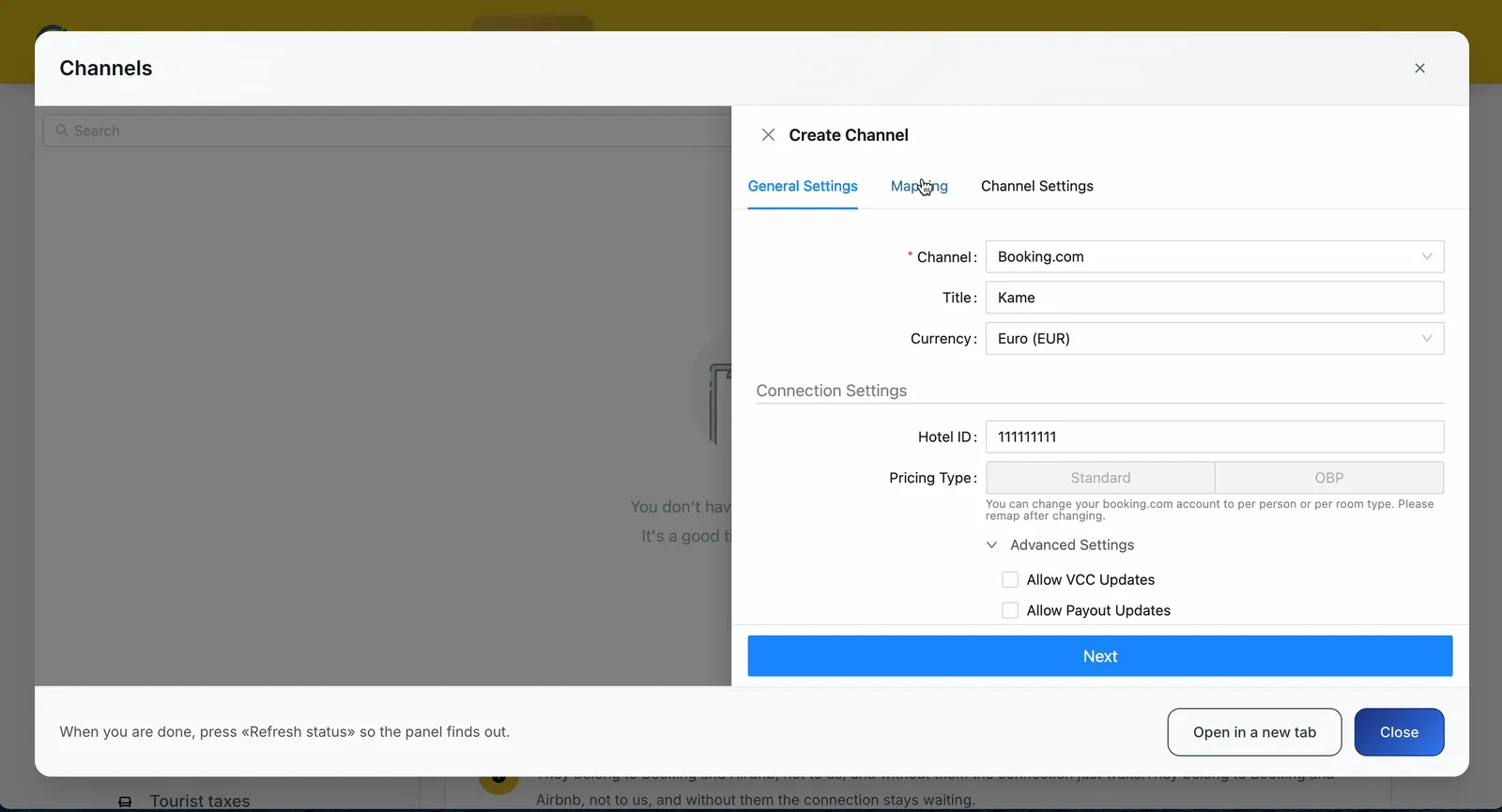
- In Channel, choose Booking.com.
- In Hotel ID, type your property number on Booking.com and click Next.
- In the Mapping tab, pair each Booking.com room and rate with yours, and save.
Booking.com only accepts one connectivity provider per property. If you had another channel manager, it stops syncing as soon as you accept Channex.
Step 6. Connect Airbnb to the channel manager
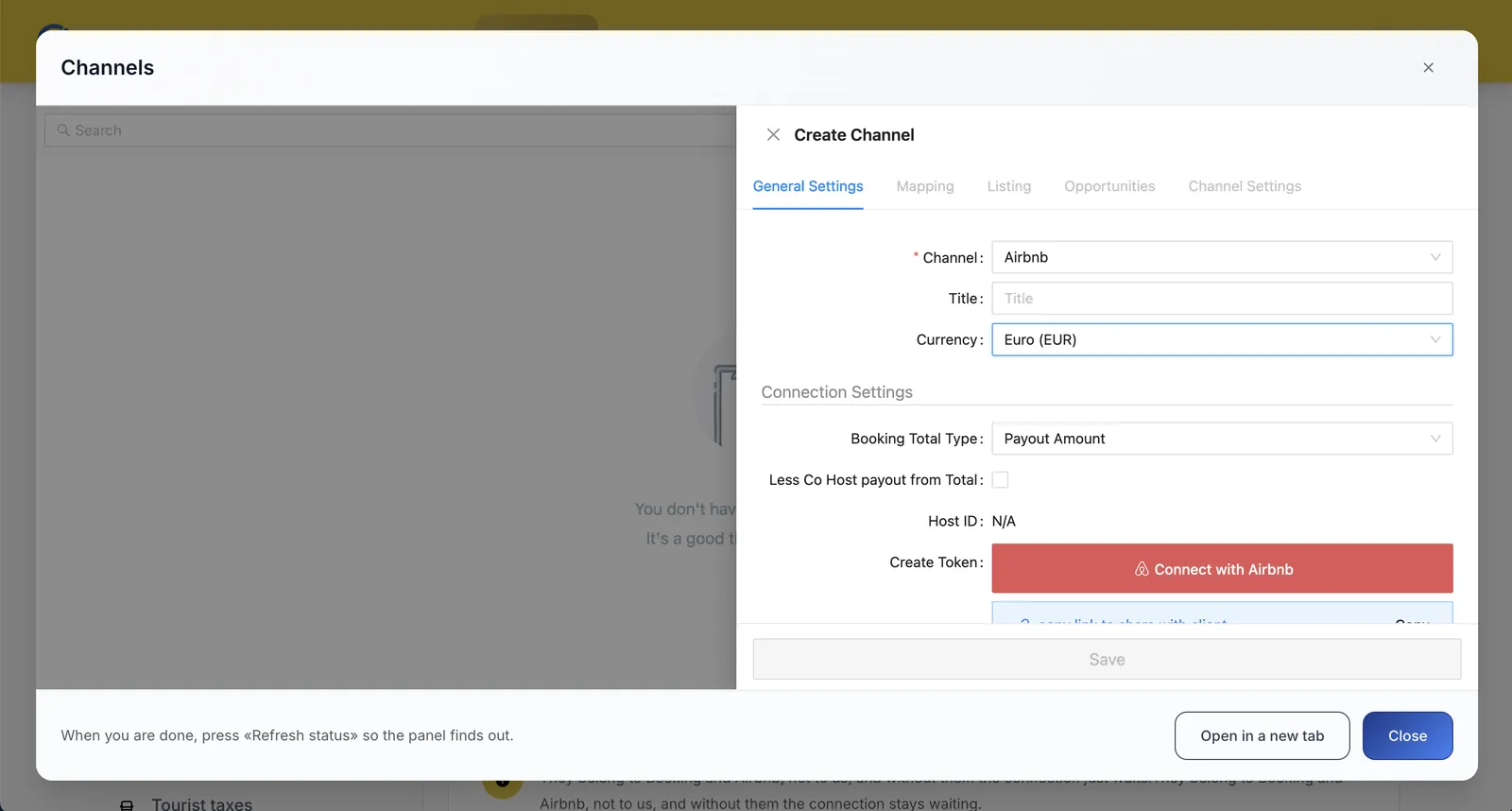
- In the channels window, in Channel, choose Airbnb.
- Click Connect with Airbnb, sign in to Airbnb and authorise the connection.
- In the Mapping tab, pair your listing with the property, and save.
From the second property onwards, do not sign in again. The Airbnb connection covers your whole account. On the Channels screen of each new property, click Add to this connection and pair only its listing.
Airbnb also accepts only one channel manager at a time. If you are coming from another one, disconnect it first; until you do, the calendar does not sync with anyone.
Step 7. Check that your Airbnb and Booking.com calendars are in sync
- Close the channels window.
- Click Refresh status.
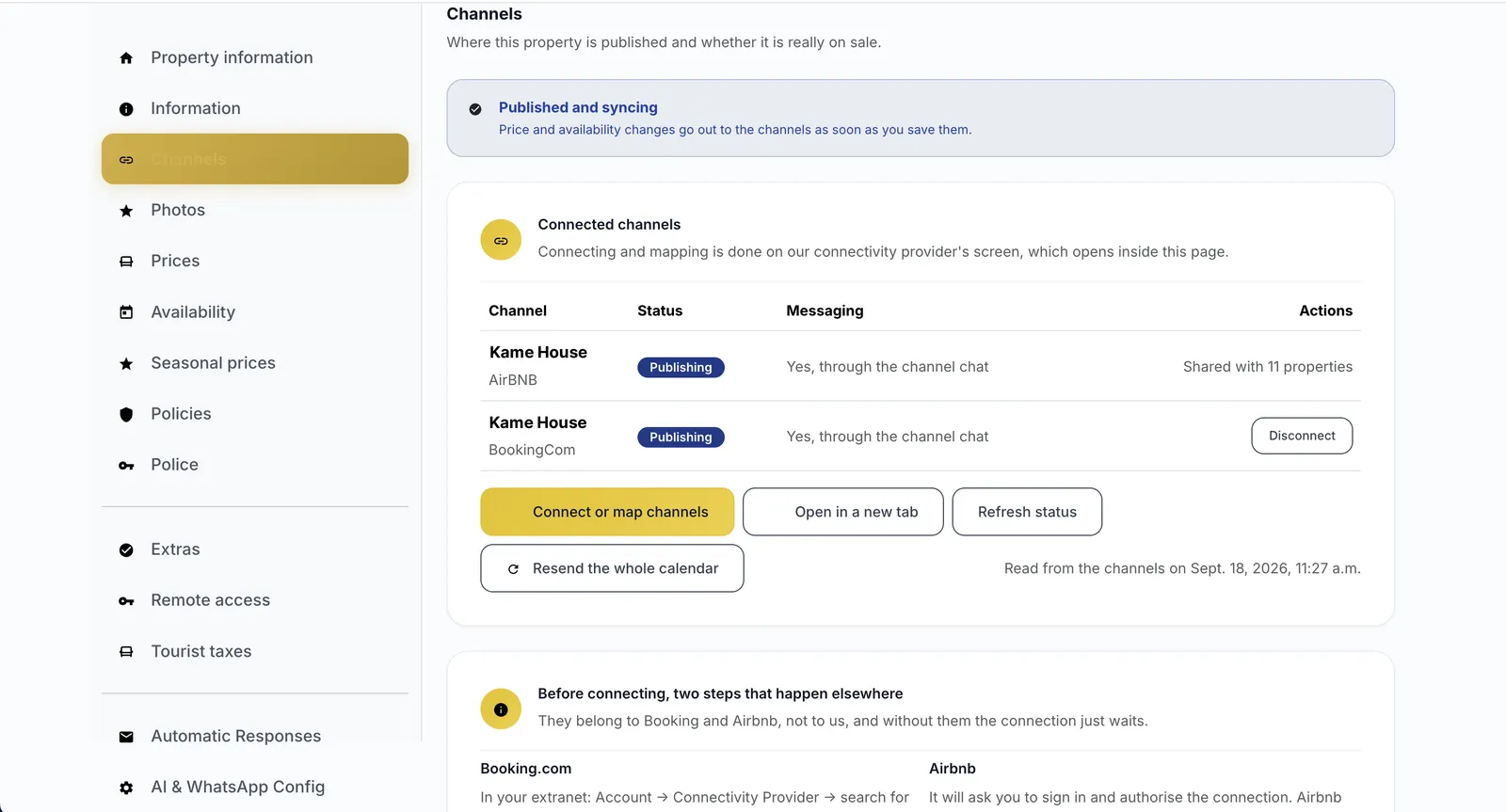
- You should see Published and syncing at the top, and each channel as Publishing.
With several properties, click Refresh the status of all in Connection with the OTAs and check them all at once.
Done
From now on, price and availability changes go out to the sites as soon as you save them, and Airbnb and Booking.com reservations arrive in your calendar.
What each status means
In the Connection with the OTAs list, each property shows one of these three statuses:
| Status | What it means | What to do |
|---|---|---|
| not connected | It is not on any site. | Continue from step 4. |
| connected, not mapped | It looks connected, but nothing is published. | Finish the pairing in the Mapping tab. |
| publishing | Prices and availability reach the site. | Nothing. |
Common mistakes when connecting a channel manager
The channel shows as connected but the property is not selling
The mapping is missing. A connected channel whose room and rate are not paired publishes nothing. Go back to the channels window and finish the Mapping tab.
The Booking.com connection stays pending
You have not accepted Channex in the extranet yet (Account › Connectivity Provider). Until you do, Booking.com does not let the channel manager in.
The cleaning fee does not show on Booking.com
Through connectivity, Booking.com only accepts the price per night and the extra guest charge. The cleaning fee is set up in the Booking.com extranet itself. On Airbnb it is sent from the channel manager.
I need to change the capacity
The capacity is fixed when the rate plan is created, so changing it means rebuilding it and reconnecting the channels. If you made a mistake, write to us before connecting anything.
Frequently asked questions
What is a channel manager?
It is software that keeps the calendar, prices and bookings of a property in sync across every site where it is listed, such as Airbnb and Booking.com. When a booking comes in on one site, it closes those dates on the others.
Does a channel manager prevent double bookings?
It greatly reduces the risk, because when a booking comes in on one site it closes those dates on the others without you doing anything. What no channel manager can fully prevent is two guests booking the same dates on two sites at the very same moment.
Can I have two channel managers connected to Booking.com or Airbnb?
No. Booking.com accepts a single connectivity provider per property, and Airbnb a single channel manager at a time. When you connect a new one, the previous one stops syncing.
What does mapping a channel mean?
Mapping is pairing each listing, room or rate on the site with the property and rate plan in the channel manager. Without that pairing, the channel shows as connected but receives no prices or availability.
Do I have to connect Airbnb again for each property?
No. The Airbnb connection covers your whole account. From the second property onwards, click “Add to this connection” on its Channels screen and pair only its listing.
Is the cleaning fee sent to Booking.com?
No. Through connectivity, Booking.com only accepts the price per night and the extra guest charge, so the cleaning fee is set up in its extranet. It is sent to Airbnb from the channel manager.
Can I change a property's capacity after connecting it?
Not without rebuilding its rate plan and reconnecting the channels, because prices by number of guests are fixed when it is created. That is why the setup asks you to confirm the capacity before continuing.
Channel manager, online check-in and guest registration in one account
With GoToCheck, the bookings that come in from Airbnb and Booking.com go straight into online check-in and guest registration with the authorities, without copying data from one program to another.
Try it free for 30 daysStuck on a step? Write to us from your app.gotocheck.pro dashboard or on WhatsApp and we will go through it with you.