If you run your Airbnb, VRBO and Booking.com listings with Host Tools, you can connect it to GoToCheck in one click, without copying any keys. From then on reservations come into GoToCheck on their own, guests do their online check-in from the link you send in your Host Tools messages, and GoToCheck files the guest registration with the police. GoToCheck is an official Host Tools partner; what the integration does is on the GoToCheck + Host Tools page.
Before you start
- A Host Tools account with your listings.
- A GoToCheck account. If you don't have one yet, you create it in step 1: as a Host Tools customer you get a 3-month free trial instead of 30 days.
- The police login details for each property: SES.Hospedajes in Spain (or the Mossos d'Esquadra or the Ertzaintza in Catalonia and the Basque Country), Alloggiati Web in Italy, SIBA in Portugal or eVisitor in Croatia.
Step 1. Create your GoToCheck account
- Go to gotocheck.pro/registro.html?de=hosttools. With this link you get 3 months free.
- Follow the sign-up assistant. When it asks for your channel manager, choose Host Tools and authorise the connection: it takes you straight to Host Tools and you carry on from step 3.
Already have a GoToCheck account? Skip this step and go to step 2.
Step 2. Connect Host Tools from GoToCheck
- In the GoToCheck dashboard, go to My account › Account Details and scroll down to Connection Information.
- Under Channel Manager, choose Host Tools and click Save Configuration.
- Click Connect with Host Tools. The Host Tools page opens.
Step 3. Authorise GoToCheck in Host Tools
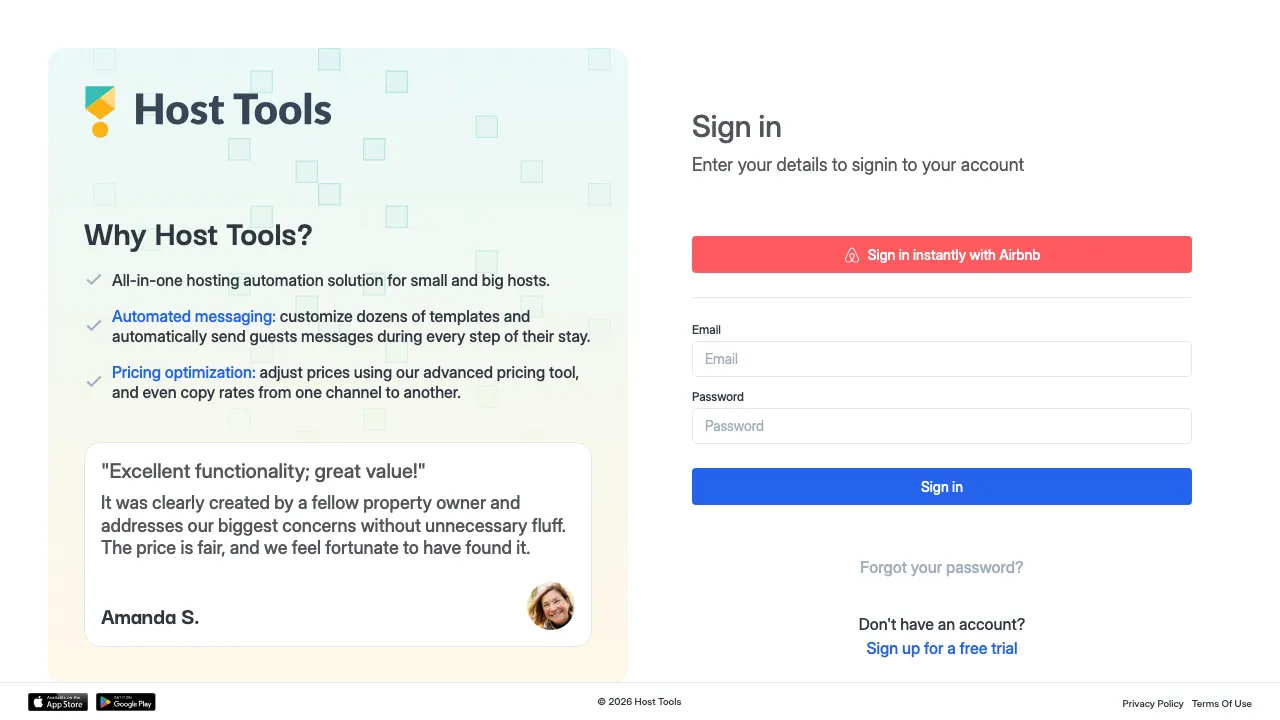
- Sign in to Host Tools the way you always do: with your email and password, or with Sign in instantly with Airbnb.
- Host Tools shows you the authorisation screen: “GoToCheck wants access to your Host Tools account”, marked Verified Host Tools partner.
- Check the permissions it asks for (see below what each one is for) and click Approve.
- You are back in GoToCheck, which tells you how many listings it imported and shows Host Tools connected.
What each permission is for. View listings: to import them. View and modify reservations: to bring in your reservations and write the check-in link and the access code into them. Manage webhooks: so Host Tools tells GoToCheck as soon as a reservation is created, changed or cancelled. Read and send messages: to send your GoToCheck templates through Host Tools messaging and see the guest's replies.
Step 4. Switch on your properties
- Go to Properties. Your Host Tools listings are already there, but switched off: they show as Disconnected.
- Switch on the ones you want to run with GoToCheck. They change to Connected.
- When you switch one on, GoToCheck brings in the reservations it already had, and from then on new ones come in on their own: instantly, through the Host Tools notification, and with a check every 2 minutes in case a notification goes missing.
If a reservation is cancelled in Host Tools, it disappears from GoToCheck too. You don't need to report anything. GoToCheck brings in no reservations from the properties you leave switched off.
Step 5. Turn on messaging for each listing in Host Tools
This step is done in Host Tools, not in GoToCheck, and it is the one people forget most.
- In Host Tools, open the listing and go to the Settings tab.
- Under Messaging, turn it on and save.
- Do the same for every listing you switched on in GoToCheck. On the Host Tools Listings page, none should show as Disabled.
Without messaging turned on, Host Tools does not send GoToCheck instant updates for that listing, and messages cannot be sent on its reservations. Host Tools has confirmed this to us: it is the first thing to check if a property is not working.
Step 6. Put the check-in link in your Host Tools messages
- For each reservation, GoToCheck writes that guest's online check-in link into Host Tools.
- In Host Tools, open the automated message you want to send it with (for example, the one after booking) and add the check-in (verification) link tag. You will find it in the Host Tools message tag list.
- If GoToCheck manages your smart lock or your fixed keypad code, it also writes the access code into the reservation: add the {{Guest Lock Code}} tag to your arrival message.
The access code must be numbers only. A code with letters is not written into Host Tools and the tag comes out empty.
Prefer messages to go out from GoToCheck? GoToCheck can send its own templates through Host Tools messaging: always on Airbnb and VRBO; on Booking.com only if Booking.com is connected through Host Tools, and otherwise by email when the reservation has one. Guest replies show up in the GoToCheck inbox. Pick one route for each message, so the link is not sent twice.
Step 7. Set up police reporting
- In Properties, open the property and go to Police.
- Enter your login details: SES.Hospedajes (or the Mossos d'Esquadra or the Ertzaintza in Catalonia and the Basque Country), Alloggiati Web in Italy, SIBA in Portugal or eVisitor in Croatia.
- Click Validate connection, switch on Enable automatic submission and click Save settings.
- Do the same for each property.
Done
From now on, every Host Tools reservation comes into GoToCheck on its own, the guest gets the check-in link in your Host Tools messages and, as soon as they finish the online check-in, GoToCheck files the guest registration with the police.
What the integration does
| What | How |
|---|---|
| New reservations and changes | They arrive instantly through the Host Tools notification, with a check every 2 minutes in case one goes missing. |
| Cancellations | The reservation is removed from GoToCheck too. |
| Check-in link | GoToCheck writes it into the Host Tools reservation, ready for your automated messages. |
| Access code | If GoToCheck has one, it writes it into the reservation and it shows in {{Guest Lock Code}}. Numbers only. |
| GoToCheck messages | Through Host Tools messaging on Airbnb and VRBO; on Booking.com if it is connected through Host Tools; otherwise by email. |
| Guest replies | In the GoToCheck inbox. |
| Guest registration | Goes to the police on its own when the guest finishes the online check-in. |
Common errors when connecting Host Tools
Reservations for a property are not coming in
Check two things: that it is switched on in GoToCheck Properties (step 4) and that messaging is turned on in Host Tools (step 5). On the Host Tools Listings page it must not show as Disabled.
I can't see the “Connect with Host Tools” button
Choose Host Tools under Channel Manager, in Connection Information. The button appears right below.
Back from Host Tools it says “Authorization denied by Host Tools”
Approve was not clicked on the Host Tools screen. Go back to Account Details and click Connect with Host Tools again.
The {{Guest Lock Code}} tag comes out empty
GoToCheck has no code for that reservation (the property has no lock or fixed code set up in GoToCheck) or the code contains letters: only numeric codes are written.
The guest registration is not sent
The police login details for that property are missing or automatic submission is off (step 7). The registration goes out when the guest finishes the online check-in, not before.
Frequently asked questions
Do I have to copy any key or API key?
No. You connect by signing in to Host Tools and clicking Approve. There are no keys to copy.
Do I keep messaging my guests from Host Tools?
Yes. The check-in link and the access code are on every Host Tools reservation, so you can use them in your automated messages. If you prefer, GoToCheck can also send its templates through Host Tools messaging.
Does GoToCheck change my Host Tools prices or calendar?
No. GoToCheck reads your listings and reservations, writes the check-in link and the access code into each reservation, and sends messages only if you set it up to.
How long is the free trial?
If you sign up at gotocheck.pro/registro.html?de=hosttools, you get a 3-month free trial instead of 30 days.
How do I disconnect Host Tools?
In My account › Account Details › Connection Information, click Disconnect. GoToCheck stops receiving your Host Tools reservations.
Which countries does GoToCheck file the guest registration in?
Spain (SES.Hospedajes, Mossos d'Esquadra and Ertzaintza), Italy (Alloggiati Web), Portugal (SIBA) and Croatia (eVisitor).
Using Host Tools? You get 3 months free
Create your GoToCheck account from this link and connect Host Tools in a couple of minutes. No lock-in.
Start your 3 months freeStuck on a step? Write to us from your app.gotocheck.pro dashboard or on WhatsApp and we will go through it with you, step by step.